Trading dashboards bring prices, positions, orders and account information onto one screen. Control panels add the ability to act: submit an order, change a risk setting, pause a strategy or cancel working instructions. The distinction matters. A screen that displays a problem does not necessarily have permission to fix it.
A useful setup should answer four questions without a hunt through menus: What do I hold? What orders are still working? How much risk remains? Are the connections healthy enough to trust the answers?
Judge trading dashboard software by those jobs, rather than the number of charts it can squeeze onto a monitor. More widgets do not automatically mean more control.
Match the Dashboard to Your Trading Workflow
Start by deciding whether you need monitoring, execution or both. Someone reviewing a few stock positions has different requirements from someone supervising automated strategies across several accounts. Write down the decisions the dashboard must support before comparing layouts or subscription plans.
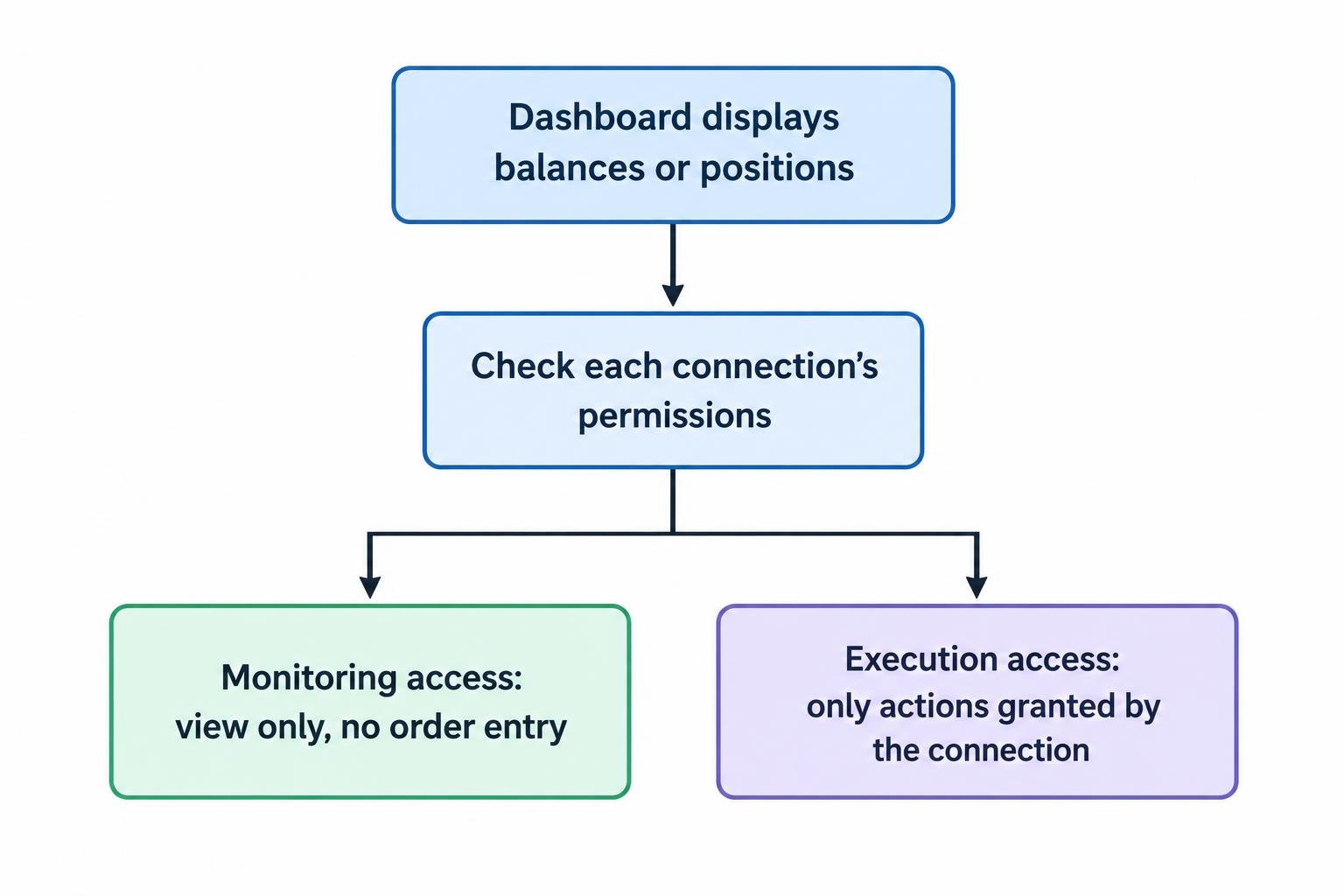
Separate visibility from authority during that assessment. An account connection might allow balance updates but not order entry. Another might support orders without exposing every risk setting available through the broker’s own platform. Ask for a feature matrix that covers your actual account types and instruments.
| Function | What to inspect | Practical question |
|---|---|---|
| Market monitoring | Quotes, watchlists and update timestamps | Can you identify stale or delayed information? |
| Position monitoring | Holdings, working orders and profit and loss | Can you trace account totals to individual trades? |
| Order controls | Submission, amendment and cancellation | Does the screen distinguish a request from a confirmed result? |
| Risk controls | Exposure limits, warnings and trading restrictions | Where is each restriction enforced? |
| Connection management | Account access, feed health and recovery status | What happens when one connection fails? |
Give urgent information a fixed location. Keep the active account, live or simulated environment, connection status and order state visible without scrolling. Use the remaining space for the markets and strategies you actually follow. The guide to designing a trading dashboard covers that layout work in more detail.
Monitor Positions, Profit and Loss, and Data Freshness
A position panel should show the instrument, account, direction, quantity, average entry price and current valuation. Keep working orders nearby, but distinguish them from completed trades. An unfilled buy order is not yet a holding, though it can still add exposure if executed.
Separate realized profit and loss from unrealized changes. A hypothetical account with $300 in closed trade profits and a $900 unrealized loss has a combined trading result of negative $600 before costs. A large green “closed profit” number would tell only the pleasant part of that story.
Check whether displayed results include commissions, financing charges and currency conversion. Also check the session boundary: “today” needs a defined time zone and reset time. For calculation choices and display formats, see live position and profit-and-loss dashboards.
When several accounts hold the same instrument, inspect both gross and net quantities. Long 100 shares in one account and short 80 in another gives a net position of 20 shares, but 180 shares of gross exposure. Do not assume that a combined dashboard total means the accounts share margin or offset each other operationally.
Make stale information obvious
Require separate status indicators for market data, account data and order routing. A moving chart should not serve as proof that the order connection is healthy.
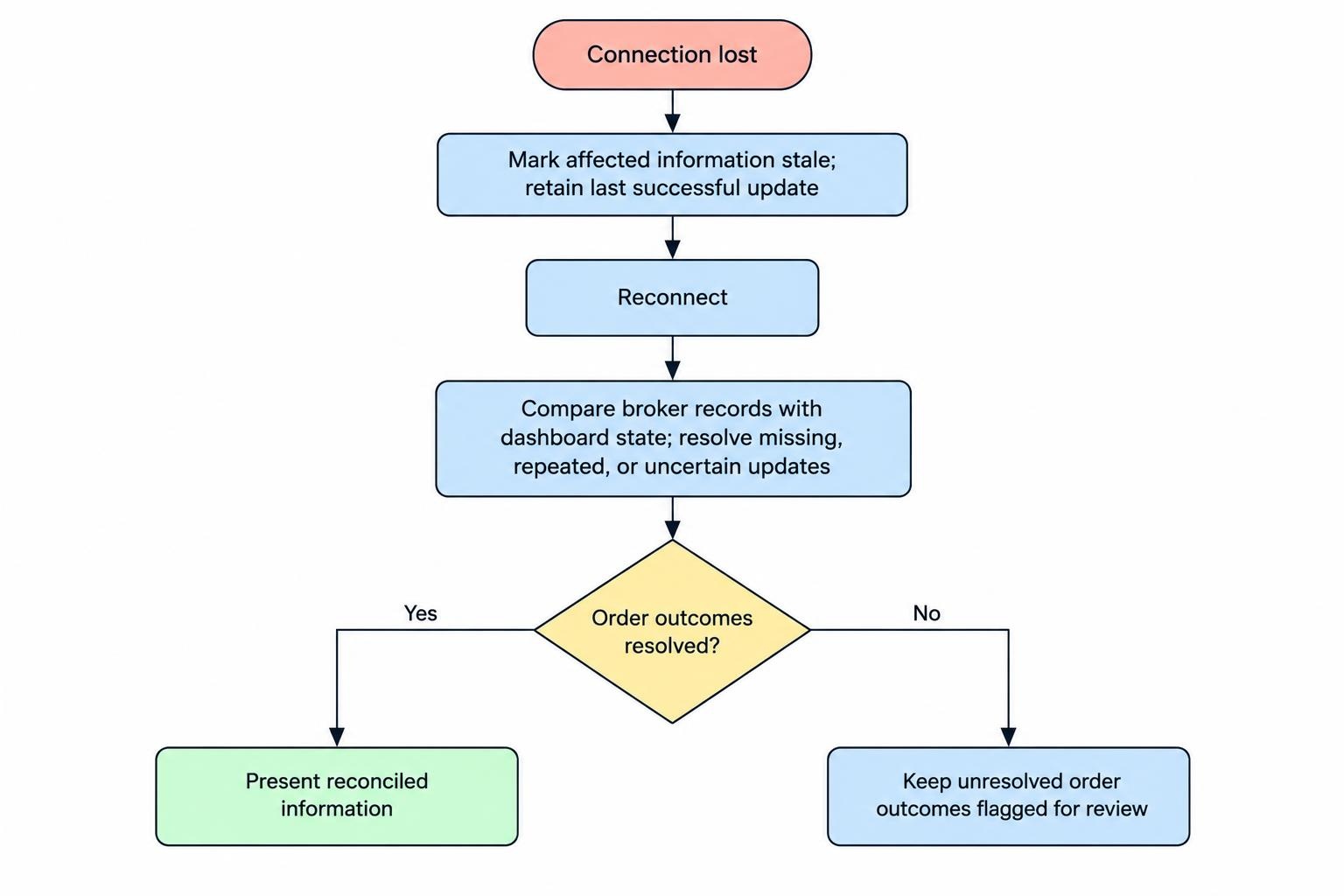
Look for timestamps on quotes, position updates and account snapshots. Specify what the interface should do when updates stop: show the last successful update, mark affected figures as stale and avoid presenting old information as current. A frozen value is easier to handle when it admits that it is frozen.
Order Controls Must Show What Actually Happened
The order ticket should make the account, instrument, direction, quantity, order type, price instructions and duration clear before submission. Review how saved defaults behave when switching between instruments. A quantity suitable for one contract or share price may be inappropriate for another.
Do not confuse a displayed quote with an execution promise. For stock orders, market orders do not guarantee an execution price; limit orders specify a price or better. That distinction should remain visible in the ticket, consistent with the SEC’s explanation of stock order types.
Use confirmation steps where an error would be expensive, particularly account changes, unusually large orders and bulk actions. If you enable faster order entry, first check keyboard shortcuts, quantity presets and protection against repeated submissions. Speed is useful only after the intended instruction is clear.
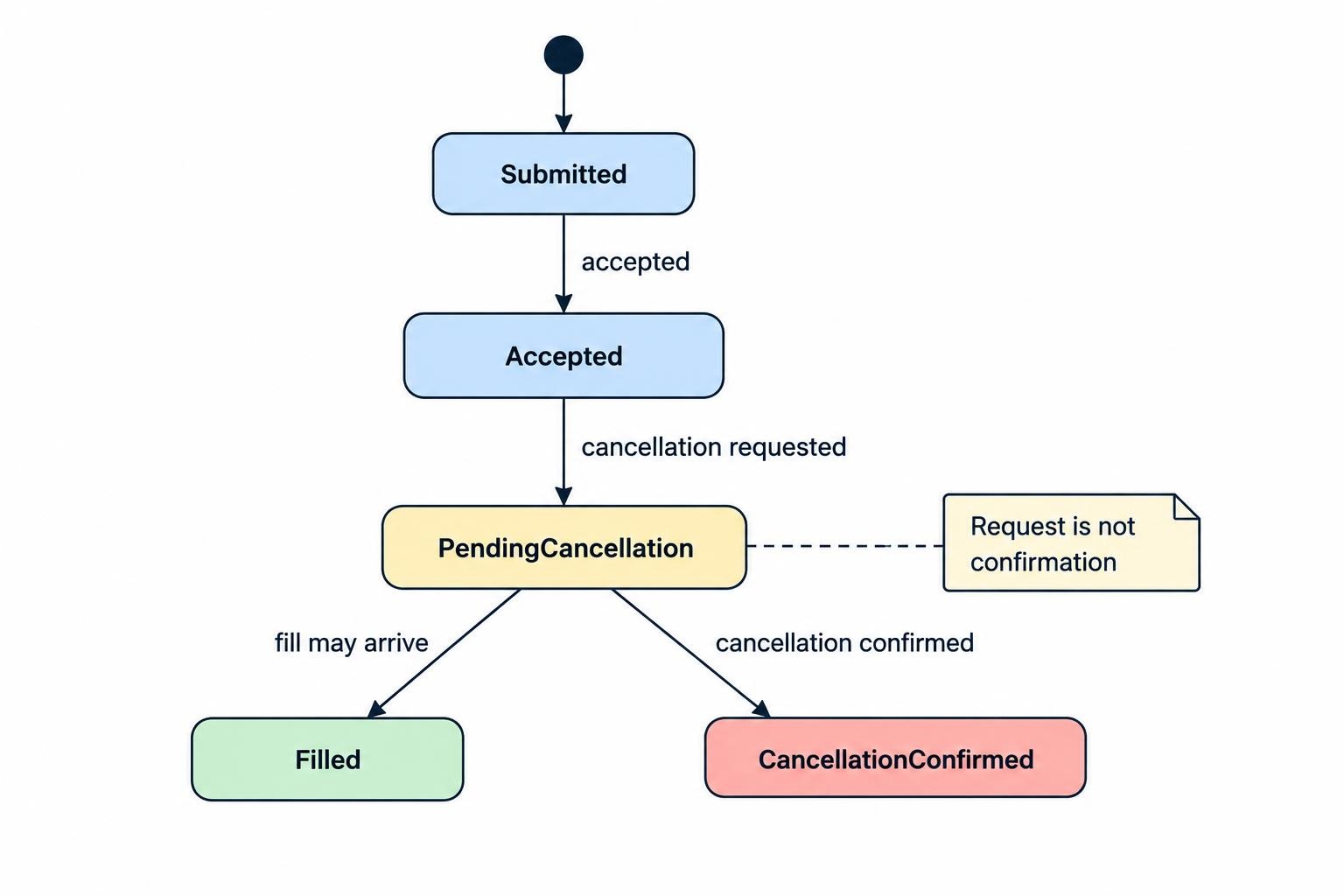
The order list should distinguish submitted, accepted, partially filled, filled, pending cancellation, cancelled and rejected instructions. Keep filled quantity and remaining quantity visible rather than relying on a single status label.
A cancellation request is not a cancellation confirmation. An order can receive another fill while cancellation is pending. The FIX order-state specification includes this sequence explicitly. Keep the order visible until its final status arrives, and do not automatically submit a replacement simply because the first request appears slow.
For every rejected action, retain the reason and the affected order identifier. “Something went wrong” belongs on a broken toaster, not an execution panel.
Risk Settings Need Clear Enforcement and Scope
A useful risk panel distinguishes warnings from restrictions. A warning asks someone to respond. A restriction blocks an action through the system enforcing it. Treat those as separate capabilities when assessing software.
Ask where each check runs: in the browser, the desktop application, a vendor service or the broker’s order system. Then ask which trading routes it covers. A restriction applied only inside one dashboard should not be treated as an account-wide safeguard unless that coverage has been verified.
Candidate settings include maximum order size, position size, instrument exposure, working-order exposure and daily loss thresholds. Choose measures that match the instruments traded rather than applying the same quantity limit everywhere. The broader trading risk control panel guide covers how to organize these controls.
Define each threshold precisely. For a daily loss rule, specify whether the calculation includes unrealized losses and costs, when the counter resets, and what follows a breach. Blocking new entries, cancelling working orders and closing positions are different actions. None should hide behind an ambiguous “protect account” switch.
Keep margin usage separate from loss estimates. Margin figures describe funding requirements, not a ceiling on how much a position can lose. Likewise, a configured loss threshold should not be presented as a guaranteed final loss amount.
Separate emergency actions
Give “cancel orders,” “block new orders” and “close positions” distinct labels and confirmations. Institutional controls illustrate why wording matters: the CME Globex Kill Switch documentation describes order blocking and cancellation, with exceptions, rather than a general instruction to liquidate positions.
For any emergency action, display the accounts and instruments affected, the requests sent, the confirmations received and anything still unresolved. A large red button is not a substitute for that feedback.
Integrations Should Handle Recovery, Not Just Connection
Assess an integration by the information and actions it supports, not simply by whether the broker appears on a compatibility list. Check account balances, positions, working orders, execution reports, amendments and historical records separately. Confirm support for your account permissions and instrument identifiers.
If you need a custom interface, the planning guide to building a trading dashboard with broker APIs covers the connection layer. At this stage, the purchasing question is simpler: can the integration support the workflow without hidden manual steps?
Ask how the software reconciles its display after a disconnection. Require it to compare current broker records with its stored state, rather than assuming nothing happened while the connection was unavailable. Specify how it handles missing messages, repeated updates and order requests whose outcomes are uncertain.
Do not assume that closing a browser or losing internet access cancels working orders. Cancellation after a disconnect depends on the relevant service and configuration. Even purpose-built controls have exclusions: CME’s Cancel on Disconnect settings exclude Good Till Cancel and Good Till Date orders in the documented service.
Keep an alternative access route documented and available. That might be the broker’s own platform or its support procedure. Before relying on it, establish how you would identify the correct account, inspect working orders and avoid duplicating an instruction already submitted elsewhere.
Alerts Should Identify the Problem and the Next Action
Configure alerts around events that deserve a response: a rejected order, a prolonged pending state, stale account data, an exposure threshold or a failed connection. Avoid sending every routine update through the same channel as an urgent execution problem.
Each notification should include the account, instrument where relevant, event time, condition and severity. It should also identify the next check, such as inspecting an unresolved order or confirming that a risk restriction took effect. Follow the same naming conventions used on the dashboard.
The trading alerts and notification systems guide covers delivery channels and escalation. For the main control panel, require a visible record of active incidents, acknowledgements and resolved events. Test whether alerts still reach you when the dashboard itself is closed; do not assume background delivery exists.
Permissions and Security Belong in the Buying Decision
For a monitoring-only dashboard, request access that cannot submit trades wherever the integration supports it. For an execution panel, grant only the functions its workflow requires. Avoid giving a reporting connection broader account authority for convenience.
This applies the NIST principle of least privilege: access should be restricted to what a user or process needs for its assigned task. Treat it as a design principle here, not a claim that every dashboard falls under the same regulatory requirements.
Check support for multifactor authentication, credential revocation, session expiry and separate user accounts. Ask where connection credentials are stored and who can retrieve them. Keep secrets out of shared screenshots, exported reports and support messages.
For shared accounts, separate viewing, trading and administration where possible. Require an audit trail identifying who submitted an order, changed a limit or altered permissions. Include a procedure for removing access when someone no longer needs it.
Evaluate the Full Workflow Before Paying
Use a demonstration or simulated environment to assess control behavior before considering live execution. Simulation can help inspect the interface and its responses, but it does not establish how live orders will fill.
Run a small set of deliberate checks:
- Order lifecycle: inspect acceptance, partial fills, cancellation requests and rejection messages where the test environment supports them.
- Connection recovery: interrupt a supported test connection and examine stale-data warnings, reconnection and reconciliation.
- Risk response: trigger a test threshold and verify the resulting warning or restriction.
- Access control: confirm that a viewing-only user cannot submit orders or alter protected settings.
Review the total cost rather than the headline subscription. Ask about market data charges, exchange entitlements, additional accounts, alert delivery, hosting and export access. Establish what remains available if you cancel the subscription, including historical orders and audit records.
Check the device you expect to use during a problem. On a phone, account identity, unresolved orders and emergency actions should remain readable without relying on a desktop layout squeezed into a smaller screen.
Choose the simplest dashboard that provides dependable visibility and the controls your workflow requires. Before enabling live execution, you should know where the data comes from, what each button can change, where restrictions apply and how to regain control when a connection fails.