CFD order management tools control how trading instructions are entered, changed, monitored and closed. They include order tickets, pending order lists, position controls, exit automation and trade records. Their purpose is practical: make the intended action clear, show what the broker has accepted, and expose anything that still needs attention.
The most useful tool is not necessarily the one with the most buttons. It is the one that makes account selection, trade size, order status and remaining exposure difficult to misread. Within a broader CFD trading software setup, order management deserves separate assessment from charting and market analysis.
What CFD Order Management Tools Should Cover
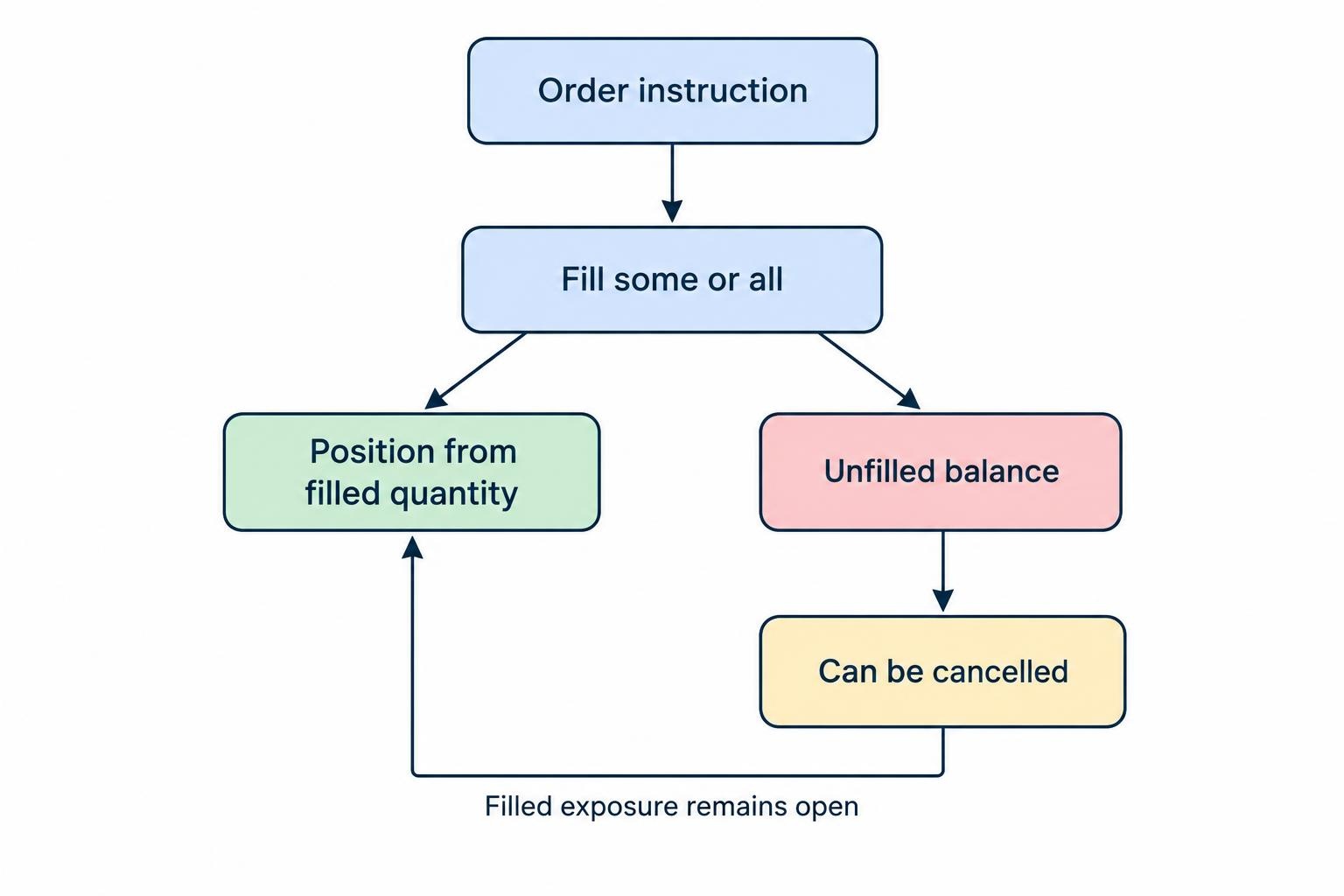
An order, a fill and a position are different things. The order is your instruction. A fill is an execution of some or all of that instruction. The position is the resulting exposure. Keep these separate when evaluating software: submitting an order is not the same as receiving a fill, and cancelling an unfilled balance does not close exposure already created.
Use the following framework to assess a platform or add-on. These are evaluation criteria, not features that every product provides.
| Function | What to look for | Practical purpose |
|---|---|---|
| Order entry | Clear account, instrument, direction, quantity and price fields | Check the instruction before submission |
| Pending order management | Filters, expiry settings and confirmed amendments | Keep working instructions aligned with the current plan |
| Position management | Explicit close controls, partial closure and remaining quantity | Reduce exposure without accidentally opening another trade |
| Exit controls | Visible stop and target settings with clear operating dependencies | Distinguish accepted protection from an inactive local rule |
| Order records | Identifiers, timestamps, fills and rejection messages | Resolve uncertainty and review execution |
Assess the Order Ticket Before Adding Automation
The order ticket should make expensive mistakes conspicuous. Look for an obvious distinction between live and demo accounts, readable contract quantities, and a clear separation between market and pending instructions. Confirm whether quantity means contracts, units, lots or a monetary amount per point. Never carry a size assumption from one instrument into another.
MetaTrader 5 provides a useful example of the fields to inspect: its ticket includes the symbol, order type, volume, stop loss and take profit, while execution settings depend on the instrument and broker. The MetaTrader 5 order entry documentation also distinguishes successful execution results from rejection messages. Assess the feedback after submission, not just the entry form.
A position sizing display should state its assumptions. In a hypothetical index CFD worth $2 per point, a 25 point distance between entry and stop represents $50 of price movement risk. That calculation excludes commissions, financing, currency conversion and any difference between the stop level and execution price. Treat it as a planning estimate, not a guaranteed maximum loss.
Review saved defaults carefully. A remembered quantity can save time, but it should not silently carry an unsuitable size into the next trade. For pending orders, check the expiry date, displayed time zone and what happens if no expiry is selected. One click entry should come after these checks. A faster mistake is still a mistake.
Track Order Status, Not Just Button Clicks
A useful working order panel distinguishes instructions that are awaiting acceptance, working, partially filled, filled, cancelled, rejected or expired. It should also make unresolved changes visible. Do not accept a disappearing notification as adequate confirmation when the order itself remains uncertain.
A cancellation request is not a confirmed cancellation. An execution can occur while cancellation is being processed. The FIX Trading Community order state specification explicitly separates pending cancellation from cancellation and documents fills during that interval. FIX terminology is a useful benchmark for evaluating status clarity, even where a CFD platform uses different labels.
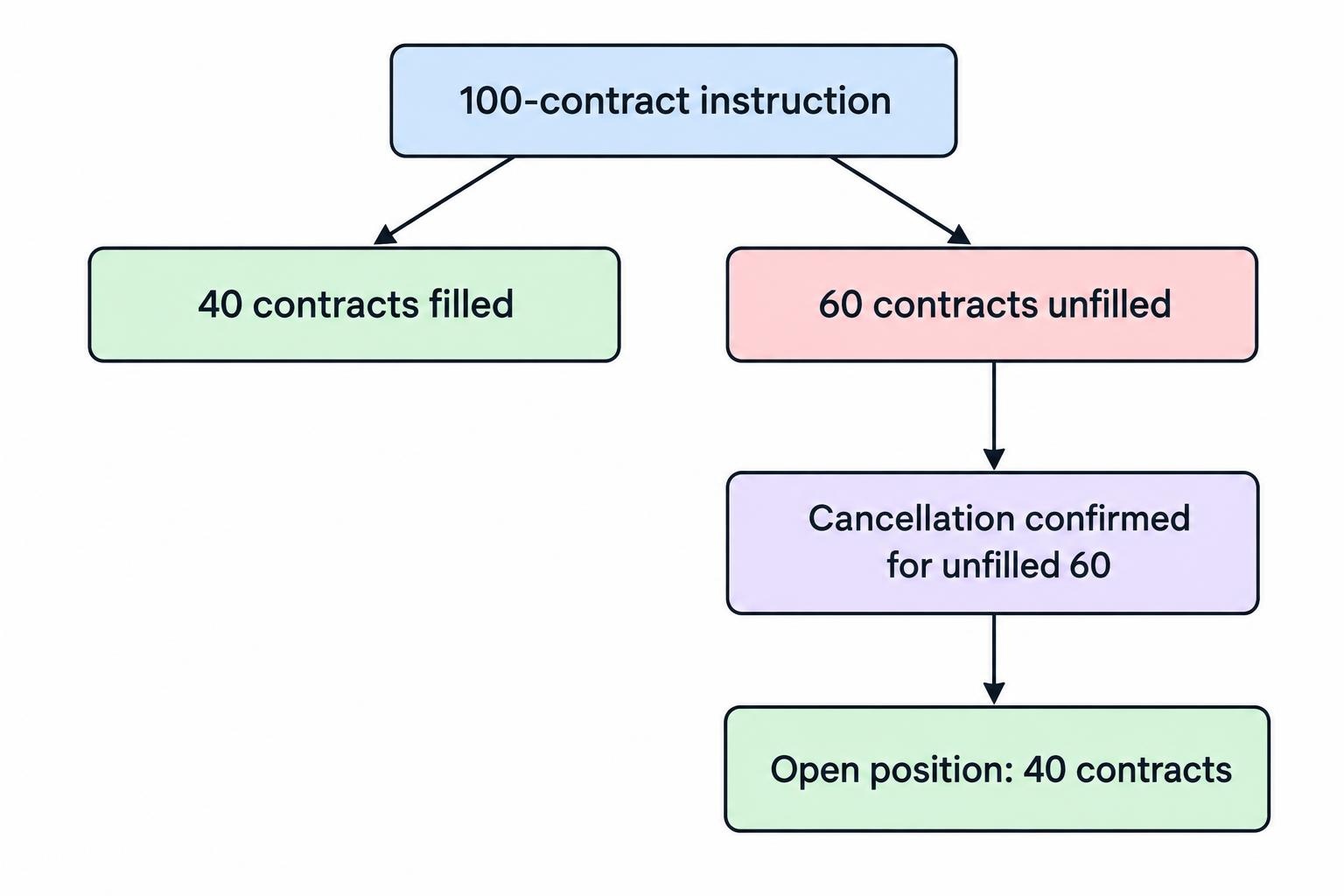
Consider a hypothetical instruction for 100 contracts that fills 40 before you request cancellation. Confirming cancellation of the remaining 60 still leaves the 40 contract position open. The interface should show the executed amount, the unfilled balance and the resulting position without making you reconstruct them from notifications.
A delayed response needs similar care. Before submitting the instruction again, inspect working orders, positions and recent history. Do not assume that a timeout means the broker rejected the request. Automated workflows need stricter controls around this uncertainty; the separate guide to failed orders, retries and duplicate trades covers that implementation problem.
Check How the Account Handles Opposite Trades
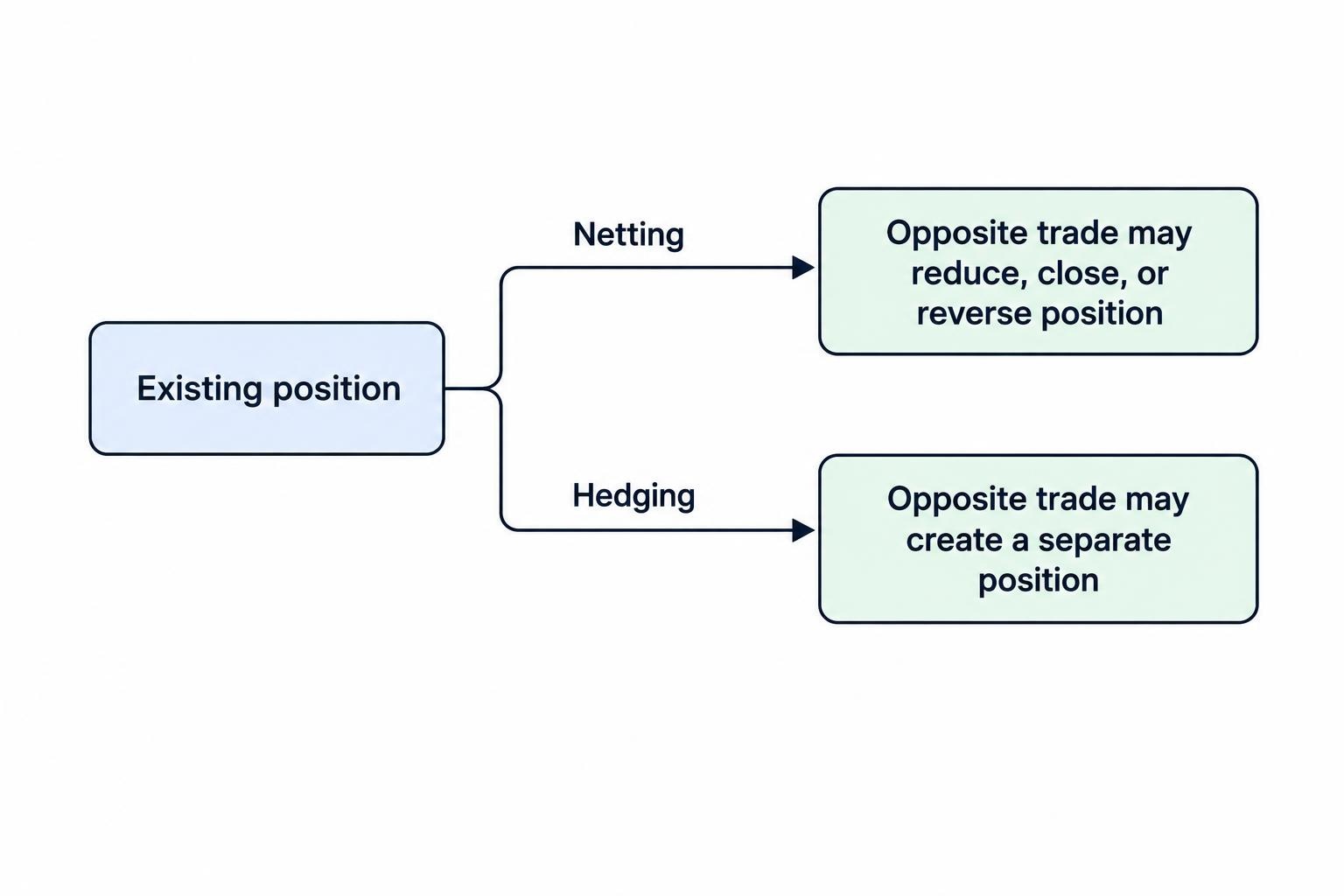
Before using a sell instruction to reduce a long position, establish how the account records positions. Under netting, opposite trades can reduce, close or reverse the existing position. Under hedging, an opposite trade can create a separate position instead. MetaTrader 5 supports both arrangements, with the account system set by the broker; its position accounting documentation describes the different closing behavior.
Prefer an explicit close position command when the intention is to exit an existing trade. For partial closures, check the selected position identifier, the quantity being closed and the balance that will remain.
Test a reduction, a full closure and an oversized opposite instruction in a demo account. The aim is not to memorize button locations. It is to establish whether the same action reduces exposure, creates another position or reverses direction.
Separate Exit Instructions from Local Automation
Exit management includes stop losses, profit targets, trailing rules and staged closures. This article focuses on how the tools manage those instructions. Detailed trigger selection and setup belong in the guide to configuring stop loss and trailing stop orders.
For every automated exit, ask where the rule operates. Does the broker’s server hold it, does the desktop application manage it, or does an external service send the instruction? Ask what happens after logout, an internet failure, a device restart or an expired connection. A rule displayed on a chart is not sufficient evidence that it remains active elsewhere.
Platform behavior can differ. The current cTrader protection documentation describes server based trailing stops, break even controls and multiple take profit levels that remain active after the session ends. Check the documentation for the exact application and feature you intend to use rather than assuming that all exit automation works this way.
If software offers bracket orders or one cancels the other instructions, examine the relationship between them. Verify what happens after a partial fill, a manual reduction or the closure of the underlying position. Ask whether remaining exits resize automatically, disappear, or need manual cancellation. Ordinary stop orders do not guarantee an execution price during a gap.
Make Bulk Actions Deliberate
Bulk controls can cancel pending entries or close several positions, but their scope needs to be unmistakable. “Close all” should identify the account, instruments, positions and quantities affected. “Cancel all orders” should not be treated as an instruction to close existing exposure.
During evaluation, filter the order list and check whether a bulk command acts on the filtered selection or the entire account. Test whether protective exits are included in a cancellation command. Require a preview or confirmation for actions whose consequences would be difficult to reverse.
For automated setups, assess stopping new entries separately from cancelling working entries and closing positions. Combining those actions into one undocumented emergency button leaves too much room for interpretation. After any bulk action, inspect the remaining positions and orders rather than relying on a single success message.
Keep Margin Controls Visible Alongside Orders
An order management screen should display account equity, used margin and available margin close to the position list. Review whether its estimates update when quantity changes and whether pending entries are included in exposure warnings. Reject any display that makes deposited margin look like the maximum possible loss on an individual trade.
Margin closeout rules also deserve attention. For UK retail accounts covered by FCA COBS 22.5 margin closeout requirements, firms must close open positions as soon as market conditions allow when net equity falls below 50% of the applicable margin requirement. This account level rule is separate from a trader’s chosen stop loss.
Do not apply that threshold automatically to accounts elsewhere. Check the terms governing your account, local eligibility to trade CFDs and any applicable retail protections. Order controls do not remove the risk of rapid losses.
Demand an Order History You Can Reconstruct
A useful audit record lets you follow an instruction from submission through amendments, fills and closure. During evaluation, look for order and position identifiers, requested and executed quantities, prices, timestamps, rejection reasons and the origin of each change. Export access is worth checking before you need it.
cTrader provides one example of this visibility. Its order information includes submitted, remaining and filled quantities, while its event view records the order’s progression in chronological sequence. The cTrader order information and event documentation provides a practical reference for the detail to request from other tools.
Keep the distinction between interface speed and execution quality. A responsive ticket can make order entry easier without establishing that fills are better. If you record timing data, separate submission, acknowledgment and execution, and note the clock and time zone used for each.
Use those records to investigate what happened rather than drawing conclusions from one trade. The guide to comparing CFD price feeds and execution quality addresses the wider assessment. Here, the priority is preserving enough evidence to make that review possible.
Choose Between Native Controls and Add-On Tools
Start with the platform’s built in controls and identify a task they do not handle well. That gap might be position sizing, account wide order filtering, staged exits or reporting. Evaluate an add-on against that task rather than buying a broad feature bundle and hoping it becomes useful.
Before paying, check compatibility with the account type and platform version. Establish what permissions the tool needs, where its settings are stored, and whether it requires a continuously running application or hosting service. Request a clear description of its behavior after a restart or connection failure.
Consider ownership of each action too. If both a native feature and an add-on can modify the same exit, establish which one should control it. Avoid overlapping automation unless the interaction is documented and tested. More controls do not automatically mean more control.
Test the Complete Workflow Before Relying on It
Use a demo account to test behavior, not just screen appearance. A compact acceptance test should cover the routine path and the points where uncertainty could change exposure:
- Enter and amend: place a small pending instruction, change its price and quantity, and verify the accepted settings.
- Cancel and inspect: request cancellation, check the final status, and inspect positions for any execution.
- Reduce and close: partially close a position, verify the remaining quantity, then close it fully and inspect related orders.
- Disconnect and recover: close the application or interrupt its connection, reconnect, and reconcile the display with account records.
Where a behavior cannot be reproduced, such as partial fills, obtain documentation rather than marking the test as passed. Record the platform version, account type and result so that a later update does not leave you relying on an old assumption.
A demo test can establish whether you understand the controls. Do not treat it as proof of live execution quality. Choose CFD order management tools for clear instructions, confirmed outcomes and recoverable records—not the promise that another layer of software will make trading risk disappear.