Desktop forex platforms suit detailed analysis and local trading tools. Web platforms make browser access convenient, while mobile apps are useful for monitoring positions and managing orders away from a desk. None is automatically better at executing trades simply because of its format.
The useful comparison is not which version has the longest feature list. It is whether you can complete your trading routine, confirm what happened and recover when something stops working. Start with the account compatibility and trading functions covered in our guide to forex trading platforms, then assess which interface supports those tasks best.
Here, “desktop” means installed software, including software running on a laptop. A web platform runs through a browser, which may itself be on a computer, tablet or phone. Mobile refers primarily to a dedicated smartphone or tablet app.
Desktop, Web and Mobile Forex Platforms Compared
Use this table as a starting point for choosing a workflow, not a promise that every platform provides the same features.
| Consideration | Desktop platform | Web platform | Mobile app |
|---|---|---|---|
| Best starting role | Detailed analysis and a permanent trading workspace | Manual trading through a supported browser | Monitoring and order management away from the desk |
| Setup | Installation and operating system compatibility checks | Browser and account access checks | App installation and device permissions |
| Chart workspace | Well suited to several charts and larger displays | Potentially similar on the same display; tools vary | Prioritise readability and access to the order ticket |
| Custom tools | Check support for your indicators, scripts and extensions | Check browser compatibility rather than assuming desktop parity | Verify each required tool individually |
| Automation | May support local execution and development | May control automation hosted elsewhere | May control cloud bots without running them on the phone |
| Main practical concern | Maintaining the installation and any local processes | Confirming feature availability and session behaviour | Avoiding rushed input on a smaller screen |
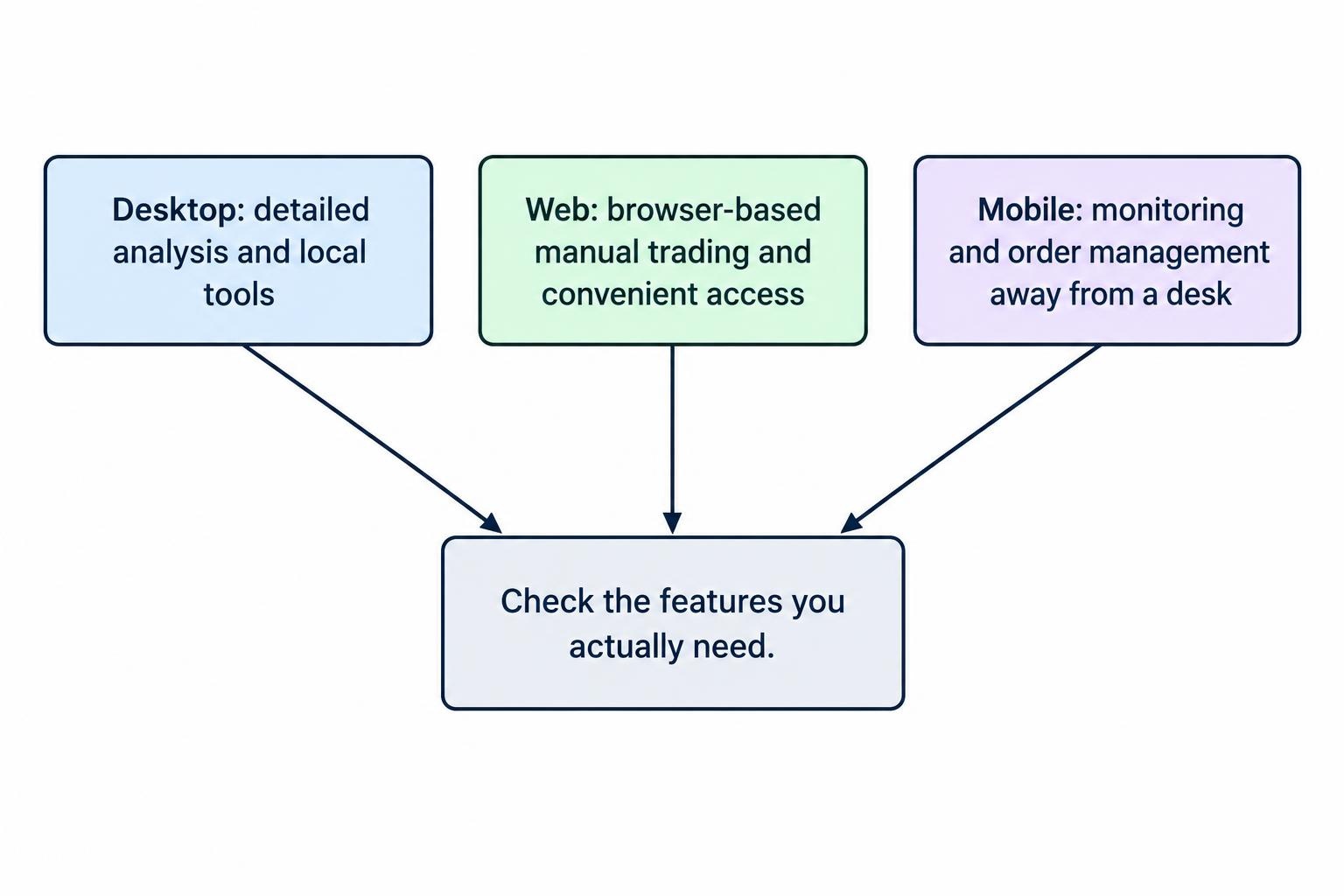
Desktop Platforms: Choose Them for a Demanding Workspace
An installed platform is a sensible starting point when your routine involves several currency pairs, custom analysis or strategy development. Some functions remain tied to desktop applications: cTrader’s cBot backtesting documentation covers testing through its Windows and Mac applications.
The practical advantage is workspace control. Consider a trader reviewing EUR/USD across daily, hourly and five minute charts, with an order ticket and account information alongside them. A large display, keyboard and mouse make that arrangement easier to inspect. This is partly a hardware advantage, though. A capable browser platform on the same monitor may provide an equally usable manual trading workspace.
Check compatibility before committing to an installation. “Available on Mac” does not tell you whether every extension, keyboard shortcut or data export behaves exactly as it does on Windows. Test the actual operating system and version you intend to use, not a demonstration recorded on somebody else’s setup.
If your process depends on a custom study, verify installation, updates and saved settings before comparing cosmetic features. Our guide to creating and installing custom forex indicators covers that separate task. A platform that looks excellent but cannot display your required analysis is the wrong fit.
Web Platforms: Convenient Access Without Assuming Fewer Tools
A browser platform deserves consideration if you want to trade from a compatible computer without maintaining a separate terminal installation. It can also serve as an alternative access route when your usual application is unavailable.
Web does not necessarily mean a basic order screen. The MetaTrader 5 web platform feature list includes market and pending orders, stop orders, technical indicators and drawing tools. Its browser interface also adapts to mobile devices. Those capabilities make it a viable manual trading interface, rather than just an account viewer.
Still, assess the functions you actually use. Can you save your chart arrangement? Export the required history? Enter an exact price without dragging a line? Recover your workspace after signing out? Avoid treating a shared product name as proof that the installed and browser versions behave identically.
Test your normal browser with your normal workload. Open the charts you need, resize the panels and switch between instruments. Browser access removes one installation step; it does not remove the need to check responsiveness, supported features or reliable account access.
Mobile Apps: Judge the Order Ticket, Not Just the Charts
A mobile app is worth assessing for a narrower routine: checking exposure, reviewing an alert, inspecting an order or closing a position when you are away from your main workspace. Whether it should become your primary platform depends on how much analysis and order editing your method requires.
Start with the order ticket. Can you distinguish buy from sell immediately? Are volume, stop price and account identity visible before submission? Does the app show a confirmation, or have you enabled immediate submission? A polished chart does not compensate for an ambiguous trade button.
Run through a realistic example in a demo account. Select GBP/USD, enter a pending order, amend its price and cancel it. Then open a position and practise a partial close if the account and app support it. Check the remaining position rather than assuming the requested action completed.
A tablet may offer a more comfortable middle ground, but test its interface rather than judging by screen size alone. Your aim is to complete the task without hiding the information needed to verify it. If reviewing one position means repeatedly switching between screens, keep detailed analysis on a larger display.
Automation Depends on Where the Software Runs
The distinction between desktop, web and mobile becomes more complicated with automated trading. Separate three tasks: creating the strategy, running it and controlling it. They do not have to happen on the same device.
For example, cTrader’s cloud and local cBot controls support cloud instances through Mobile and Web, while Windows and Mac support both cloud and local instances. A cloud instance runs independently of the device used to start it. A local instance depends on the application remaining open on its host computer.
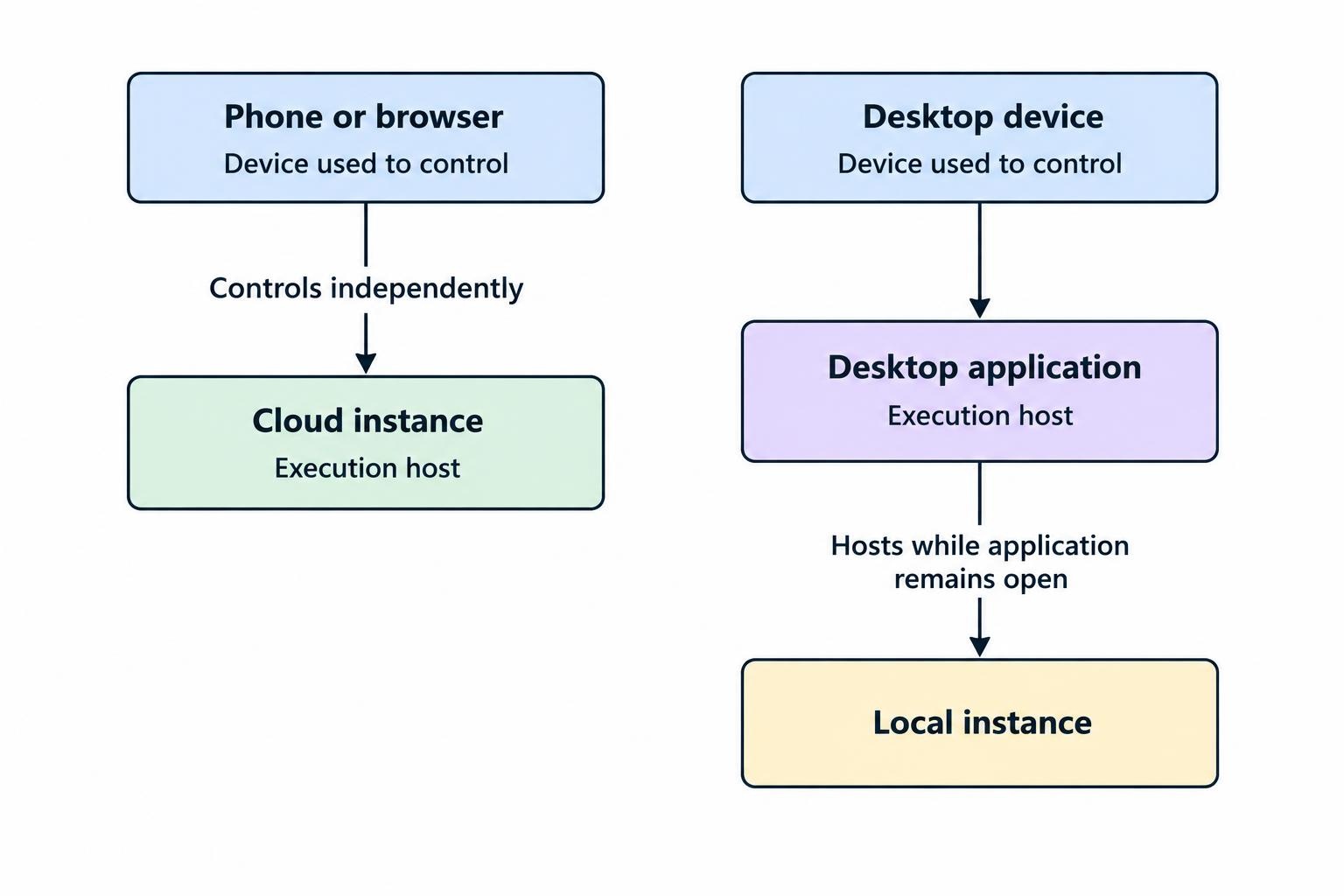
That makes “mobile platforms cannot automate forex trading” too broad. A phone can provide controls for a bot executing elsewhere. It does not follow that the phone can develop, backtest or run every strategy locally.
Before choosing a format, identify the execution host and the available controls. Can you inspect errors, change parameters and stop the running instance? If your laptop loses power, which process stops? If you close a trade manually, could the strategy open it again?
Where a strategy requires a continuously running terminal, assess forex VPS hosting for trading software separately. Hosting is an operating decision, not a feature automatically supplied by a web interface. Avoid paying for it until you know what must remain running and whether your platform already offers a suitable hosted option.
What Happens When You Close the Platform?
This is a more useful question than asking which version has more indicators. Distinguish an order accepted by the trading server from a rule that your device must continue calculating.
In MetaTrader 5, the built in trailing stop runs in the platform, whereas stop loss and take profit processing occurs on the server. If the platform is switched off, trailing adjustments stop; a stop loss level already placed remains active. The MetaTrader 5 order and trailing stop documentation sets out that distinction. Do not assume another platform implements trailing stops in the same way.
Apply the same check to alerts and custom trade management. Ask whether each function runs on your computer, in a hosted service or on the trading server. Then verify its behaviour in a demo environment by closing the application or disconnecting the device.
Keep two recovery questions separate: “Can I access my account from another device?” and “Will my existing automation continue?” A working mobile login may answer the first without answering the second.
Speed and Execution: Compare Results, Not Animations
Do not award a platform a speed advantage because its buttons react quickly. Interface responsiveness, order transmission and execution confirmation are different stages. A smooth animation is not evidence of a better fill.
When comparing formats, keep the account, instrument and order type consistent where possible. Check connection status, confirmation messages and recorded order details. If the platform appears unresponsive after submission, inspect the order and position records before submitting again.
For a more structured assessment, use forex spread and slippage monitoring tools. Keep that assessment separate from interface preference: you may prefer one layout while finding no evidence that the format itself improves execution. Demo testing can establish whether the controls suit you, but it should not be treated as proof of future live execution quality.
Security and Backup Access Across Devices
Apply the same security standard to every login route. Use official downloads and verified account access pages, avoid saving credentials on shared devices and review which sessions remain signed in.
Enable multifactor authentication wherever the relevant trading account, account portal or associated email service offers it. MFA adds another identity check beyond a password; the CISA multifactor authentication checklist describes how to enable it. Do not assume unlocking your phone with a fingerprint also protects every account session inside it.
Prepare backup access before you need it. Confirm that you can sign in, identify the correct account and find open positions from the second device. Also ask what happens if your phone is lost and it holds your authentication method. An emergency is a poor time to discover an unfinished recovery setup.
A Practical Demo Test Before You Choose
Compare the formats using the same routine rather than browsing menus at random. Record any missing function and whether it is genuinely necessary. Five checks cover most of the decision:
- Rebuild your workspace. Open your usual instruments, timeframes and studies. Check that prices, exposure and order controls remain readable together.
- Complete an order cycle. Place, amend and cancel a pending order. Open and close a demo position, then confirm the recorded result.
- Switch devices. Verify the correct account and inspect positions and orders. Separately check whether drawings, watchlists and chart settings carry across.
- Test interruptions. Close the app or browser, disconnect the device and reconnect. Check order status before repeating any uncertain submission.
- Check your essential extras. Test required indicators, exports, alerts and automation controls. Include any subscription or hosting costs in the comparison.
Repeat the test on the hardware you will actually use. A demonstration on a large monitor says little about editing an order on your phone. Equally, one awkward mobile task does not disqualify an app intended only for occasional monitoring.
Choose a Primary Platform and a Clear Backup
Choose desktop software when your required tools or development workflow justify it. Choose web access when browser convenience comes without sacrificing necessary controls. Choose mobile as the primary interface only if your complete routine remains clear and verifiable on that device.
Using more than one format can be sensible, provided each has a defined role. Analyse on your main workspace, manage access through a tested backup and document where automation runs. The best arrangement is the one you can operate consistently, not the one with the most buttons.