Custom forex indicators turn a trading rule into a repeatable chart calculation. They can measure distance from a moving average, mark a session range or flag a condition that would otherwise require checking several values by hand. The useful part is consistency, not another set of colored arrows.
Creating one involves defining the calculation, building it in the platform’s language, installing the correct file and checking its behavior on live bars. This guide covers MetaTrader 4, MetaTrader 5 and TradingView. For broader decisions about chart features and data displays, see our guide to forex charting software.
Define the Indicator Before Writing It
Start with a rule that another person could calculate without asking what you meant. “Show strong momentum” is not a specification. “Measure the completed candle’s closing price against its 20 period simple moving average, expressed in pips” is.
Consider a simple distance indicator. It calculates the average of the latest 20 completed closing prices, subtracts that average from the latest completed close, then converts the difference into pips. A histogram above zero means price closed above the average; below zero means it closed below.
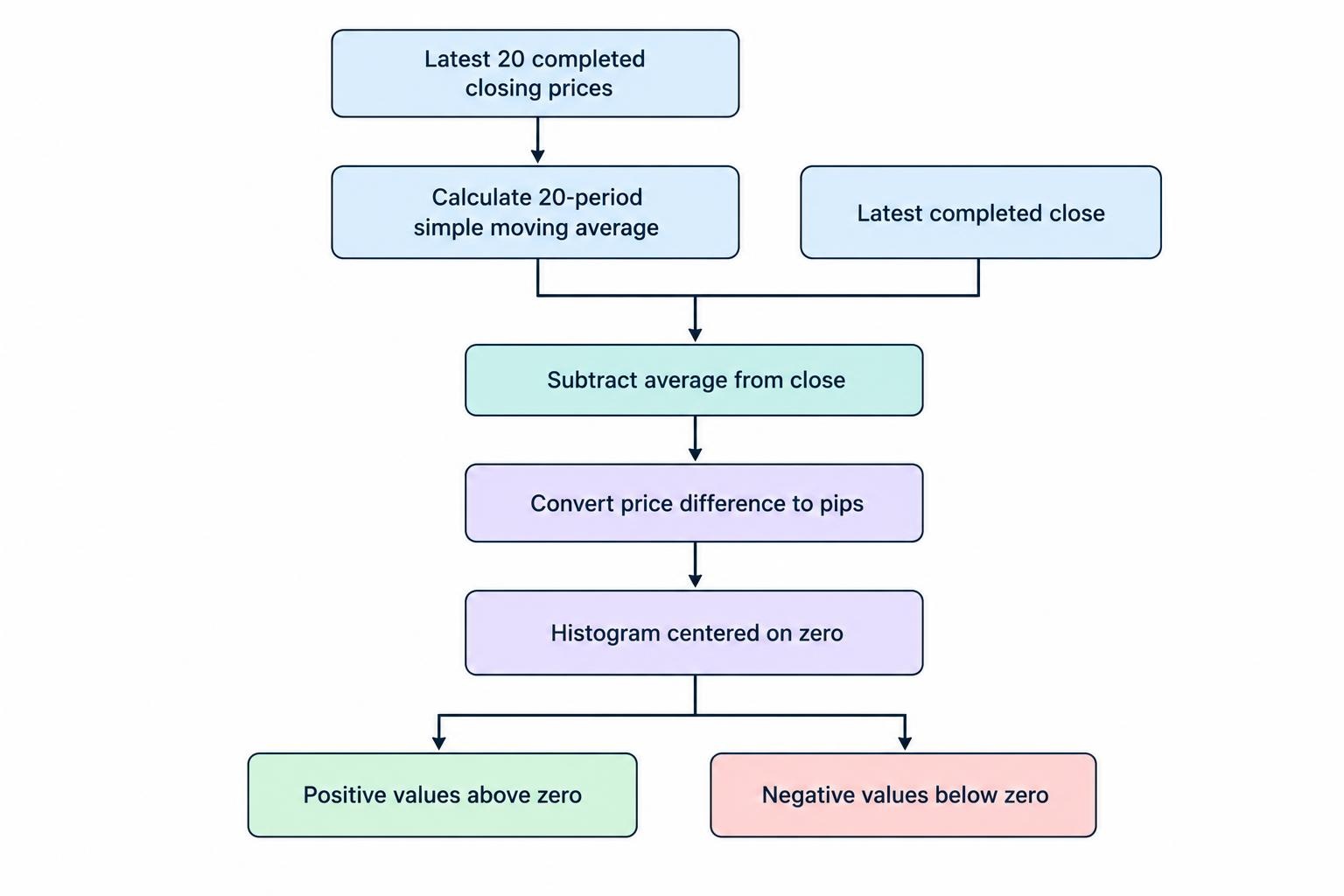
In an illustrative EUR/USD calculation, a closing price of 1.0850 and an average of 1.0835 produce a positive distance of 15 pips. That is a measurement, not an instruction to buy. Decide separately whether the reading belongs in a trading rule.
Define the inputs too: averaging period, price field, pip size, display colors and any alert threshold. Do not assume that one pip conversion suits every currency pair, or confuse the platform’s smallest quoted increment with a pip.
Finally, settle the timing. Should the display change during the current candle, or only after it closes? If an alert fires above 10 pips, should it fire on every qualifying candle or only when the value crosses from 10 or below to above 10? Those choices belong in the design, not in a later argument with the chart.
Choose the Correct Language and File Format
The calculation may be portable, but the program is not. Build for the platform that will run it, and distinguish editable source files from compiled files.
| Platform | Language | Editable source | How it runs |
|---|---|---|---|
| MetaTrader 4 desktop | MQL4 | .mq4 |
Compiled into an .ex4 file |
| MetaTrader 5 desktop | MQL5 | .mq5 |
Compiled into an .ex5 file |
| TradingView | Pine Script | Script edited in Pine Editor | Added to the chart through the editor |
Renaming an MT4 file does not convert it into an MT5 indicator. Translating the logic requires rebuilding and checking the implementation. Keep the source if you expect to change the calculation later; possession of a compiled file does not provide an editable version of its original program.
Create a Custom Indicator in MT4 or MT5
Generate the Indicator Template
Open MetaEditor from the desktop terminal, start a new file and choose the custom indicator template rather than an Expert Advisor or script. Give it a recognizable name and add the inputs required by your design.
Choose whether the output belongs over the price chart or in a separate pane. The distance histogram suits a separate pane because its scale represents pips, not exchange rates. Define its plot style and labels before adding decorative features.
The MetaEditor indicator wizard documentation covers input parameters, display settings and the generated initialization and calculation handlers. The wizard creates a framework; it does not invent the calculation for you.
Add the Calculation and Output
Implement the plain language rule in small stages. Begin with one numerical output. For the distance example, calculate the average, subtract it from the selected close and convert the result into pips. Check those values before adding histogram colors, markers or notifications.
Leave the output empty until enough history exists for the calculation. Also define how the indicator behaves when inputs are invalid. A zero averaging period should produce a clear rejection, not a mystery line.
In MT5, calculations run through the OnCalculate handler. Its prev_calculated parameter helps avoid recalculating unchanged history, but the terminal can reset it when historical data changes. Account for that reset and explicitly check array indexing direction. The MQL5 OnCalculate reference documents both behaviors.
Keep alert logic separate from plotting logic. For an alert intended to fire once per completed candle, record the candle’s timestamp and prevent another alert for that same timestamp.
Compile and Inspect the Messages
Save the main source file and select Compile, or press F7. Successful compilation produces the matching executable file. Errors prevent a new executable from being generated; warnings can still accompany a generated file and deserve inspection.
Double click a compiler message to inspect the affected line. Fix the earliest relevant error, then compile again, since one mistake can produce several later messages. The MetaEditor compilation documentation covers file generation, errors and warnings.
Successful compilation proves that the compiler accepted the program. It does not prove that the formula, candle selection or alerts are correct.
Install Custom Indicators in MT4 and MT5
Use the data folder belonging to the terminal you actually run. Do not guess a folder under Program Files, especially if several terminal installations exist. In MT4, File > Open Data Folder opens the active terminal’s storage location, as documented in the MetaTrader terminal data folder guide.
- Locate the indicator directory. Use
MQL4/Indicatorsfor MT4 orMQL5/Indicatorsfor MT5 within the terminal’s data folder. - Copy the appropriate files. Place the indicator’s source or compiled file there. Preserve any supplied subfolder structure and follow the package instructions for dependencies.
- Compile source files if required. Open an
.mq4or.mq5file in the matching MetaEditor and check the compilation result. - Reload the indicator list. If the new item does not appear, refresh the Navigator list where available or restart the terminal.
- Attach it to a chart. Select the intended symbol and timeframe, then inspect the inputs and display settings before accepting them.
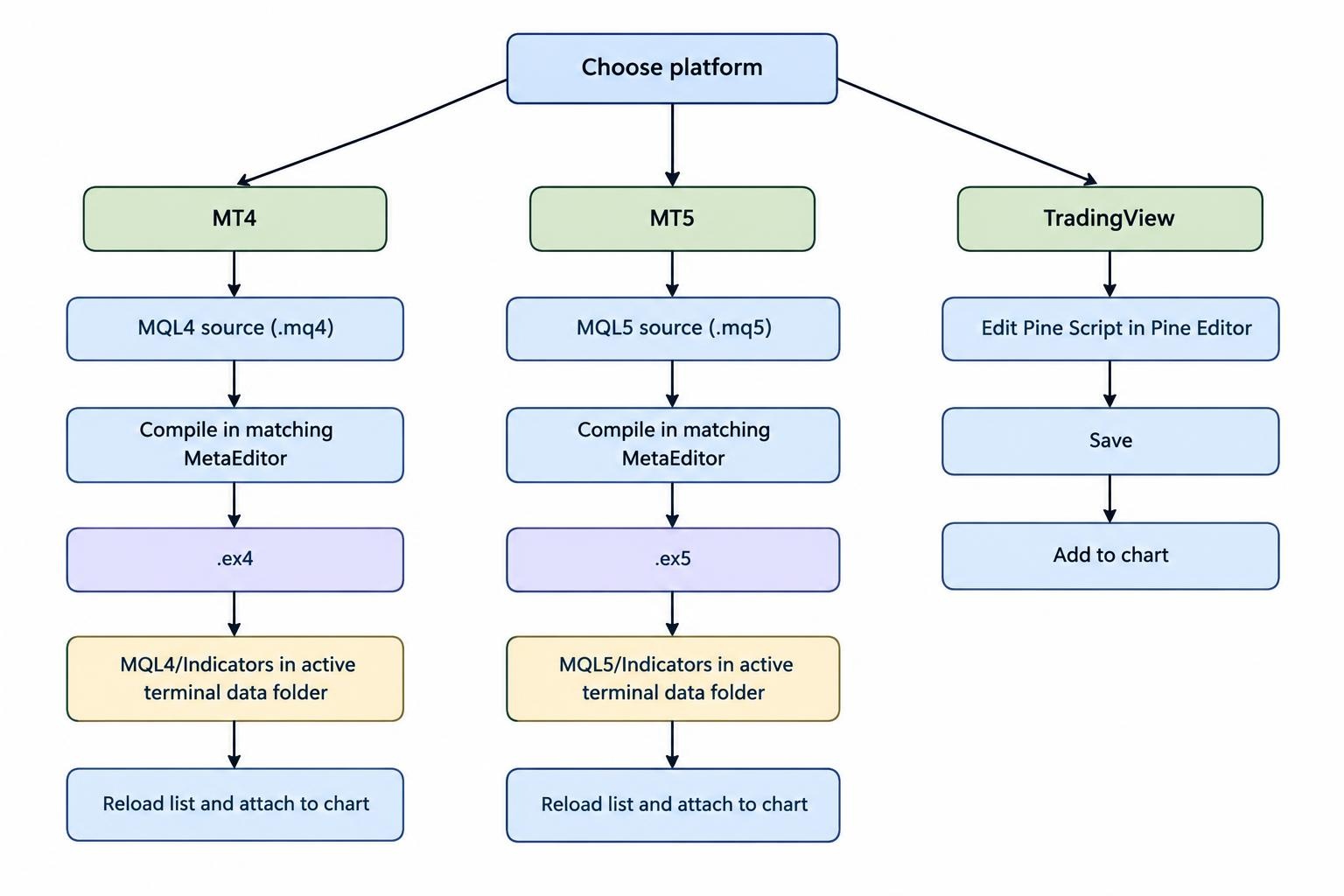
MT4 supports attaching an indicator by double clicking it in Navigator, using its context menu or dragging it onto a chart. Its properties include inputs, colors, timeframe visibility and DLL permissions. The MT4 indicator attachment controls show where these settings sit.
Save a chart template after checking the setup. Keep a separate record of the indicator version and inputs, so a later update does not leave you guessing which combination produced an earlier result.
Create and Add a Custom Indicator in TradingView
TradingView uses a different workflow: create or edit the script in Pine Editor rather than copying a MetaTrader executable into a folder.
Open Pine Editor, expand the menu beside the script name and choose Create new > Indicator. Build the calculation and plot, give the script a useful name, then save it. Select Add to chart to display it, and use Update on chart after making changes. These controls are covered in TradingView’s script creation instructions.
You can also start from editable source for a built in or community script. Make a working copy before changing it, and check the license before redistributing someone else’s work. A script you can use is not automatically yours to publish.
For the distance indicator, expose the averaging period and pip conversion as inputs, then plot the result around a zero line. Add threshold markers only after the plotted values match your manual calculations. Keeping that first version small makes debugging less of a guessing contest.
Check Repainting and Signal Timing
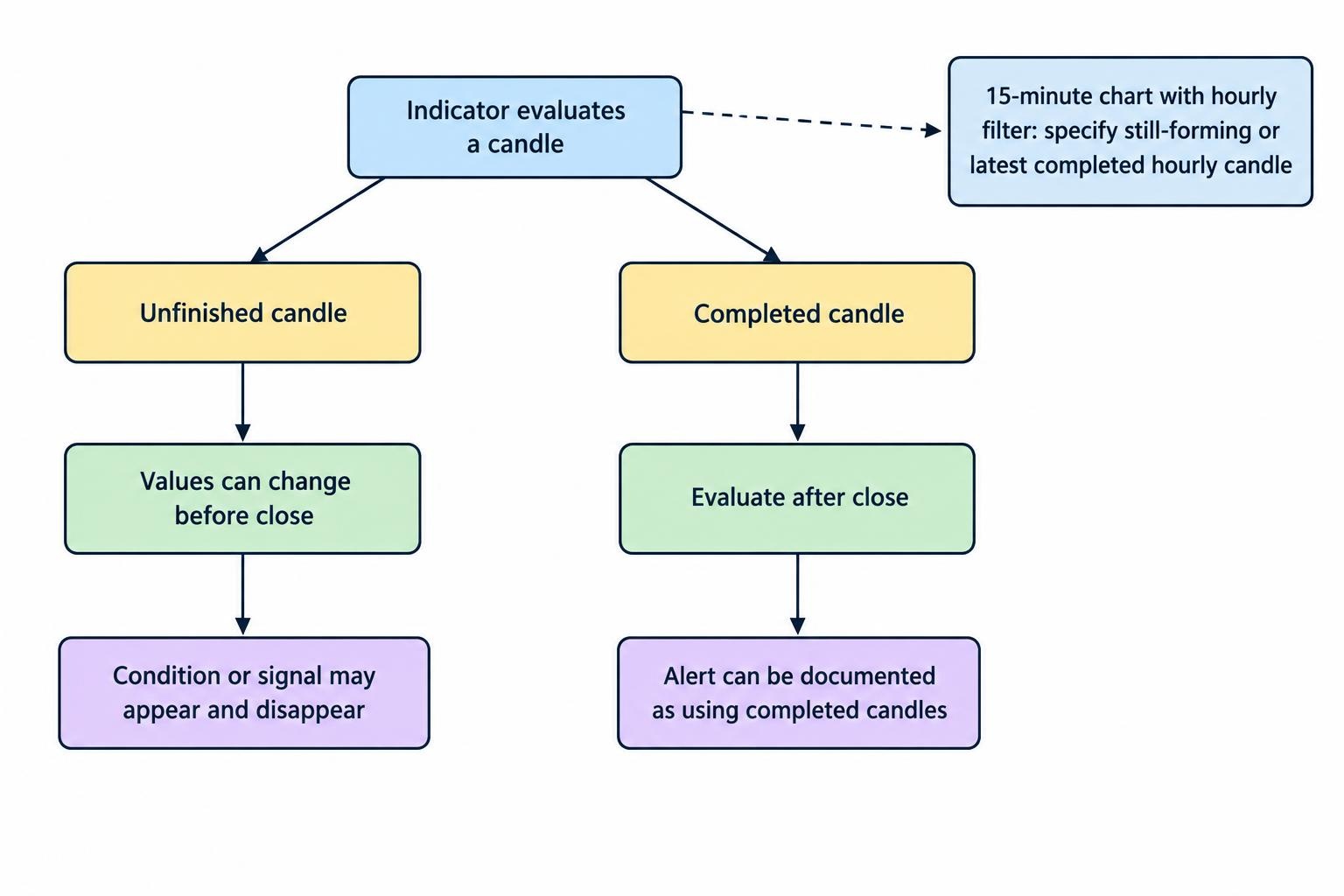
An indicator can behave differently on an unfinished candle and a completed one. The current high, low and closing value can change before the candle ends, so a condition may appear briefly and then disappear. That alone does not establish that the indicator is faulty.
More troublesome behavior occurs when the historical display suggests that a signal was available earlier than it really was. Test whether markers appear in real time, whether they move after a reload, and whether the script draws information onto earlier candles.
For Pine indicators, requiring confirmation of the current chart bar can prevent signals based on that bar’s unfinished values. It does not automatically resolve every repainting problem, particularly when another timeframe supplies data. The Pine Script repainting documentation distinguishes these cases.
For the example histogram, document that alerts use completed candles. If you later add an hourly filter to a 15 minute chart, define whether that filter uses the latest completed hourly candle or the still forming one. They are different rules, even when the historical chart makes them look alike.
Troubleshoot Missing or Incorrect Output
The indicator is missing from the list. Check the terminal, platform version and destination directory before changing the program. Confirm that you have the matching compiled format, or source that compiles successfully. A file saved into another terminal’s folder will not help the terminal in front of you.
The indicator attaches but displays nothing. Check available history, enabled timeframes, plot colors and the selected pane. Inspect the output values where the platform exposes them. A blank plot may be intentional during its initial calculation period, but it should not stay unexplained.
The values differ from your calculation. Compare the same symbol, timestamp, price field and averaging method. Check whether one reading uses the current candle and the other uses a completed candle. Then inspect pip conversion and array indexing.
Alerts repeat or arrive unexpectedly. Check whether the rule describes a crossing or simply a continuing condition. Verify that the alert uses the same candle and threshold as the visible marker. Test with one chart instance first, so duplicate installations do not muddy the result.
Validate the Indicator Before Relying on It
Begin with arithmetic checks, not profitability claims. Select several completed candles and calculate the expected output independently. Include positive, negative and near zero readings, plus a value close to any alert threshold.
Next, observe the indicator as new candles form. Record when a marker first appears, when an alert arrives and what remains after a chart reload. Repeat the checks after changing timeframe, restarting the platform and loading more history.
If the indicator will become part of a trading strategy, assess that strategy separately. Define entries, exits and costs rather than treating a tidy histogram as evidence of returns. Our guide to trading strategy backtesting software covers that broader evaluation.
For downloaded indicators, verify the origin and review requested permissions before running them. Leave DLL imports disabled unless you have a justified, reviewed need for them. A demo account separates testing from live trading funds; it does not make unfamiliar software safe to run on your computer.
Keep a known working version, its source where available and a short change log. After each update, repeat the same calculation and timing checks. A useful custom forex indicator should be explainable, reproducible and easy to remove—not a black box that demands trust because its arrows look convincing.