Comparing CFD trading platforms means comparing how you place, monitor and close trades, not just how many indicators fit on a chart. The useful differences are practical: whether the order ticket shows exposure clearly, whether position controls work on your phone, and whether the software supports your trading method without awkward workarounds.
MetaTrader 4, MetaTrader 5, cTrader, TradingView connections and proprietary broker platforms deserve different checks. None wins every category. Start with the markets and account you can legally access, then assess the interface, costs and controls. The wider CFD trading software guide covers the supporting tools around the platform itself.
Separate the Platform From the Brokerage Account
A platform is the interface through which you analyze prices and send instructions. The brokerage account determines the instruments, contract specifications, charges and trading conditions available to you. Two accounts using the same platform name can therefore offer quite different trading arrangements. Compare the complete combination: platform, broker entity, account type and instrument.
For U.S. readers, access needs a separate check before any software comparison. An offshore registration form does not establish that an offering is lawful. A CFTC enforcement action involving CFDs offered to U.S. customers concerned unlawful retail commodity transactions and an unregistered intermediary. Verify product and provider eligibility rather than treating a familiar platform logo as permission to trade.
Protections also depend on jurisdiction and client classification. For UK retail accounts within scope, the FCA’s CFD rules include minimum margin requirements, account margin closeout requirements and negative balance protection. These protections do not make CFDs low risk: the money dedicated to the account remains at risk. Keep regulatory checks separate from interface scoring; an attractive dashboard cannot compensate for an unsuitable account.
CFD Platform Comparison: Where to Start
The following table identifies useful starting points, not a universal ranking. Confirm every requirement on the actual account and device you intend to use.
| Platform or approach | Reason to shortlist it | Main comparison check |
|---|---|---|
| MetaTrader 4 | You already depend on MQL4 indicators or Expert Advisors. | Whether your existing tools and required CFD contracts work on the offered account. |
| MetaTrader 5 | You need account behavior that supports your position management method. | Whether the account uses netting or hedging, and how opposite orders behave. |
| cTrader | You want to assess cBot automation with local or cloud operation. | Which execution environment supports your bot and its dependencies. |
| TradingView connection | You want chart analysis and supported account execution in one interface. | Whether the exact symbol is tradable and the order panel has the required data. |
| Proprietary broker platform | You prefer an interface built around one provider’s account. | Order controls, reporting, portability and dependence on that provider. |
MetaTrader 4: Start With Your Existing Tools
MT4 deserves consideration when an established workflow depends on its software. Its Expert Advisors use MQL4 to automate analysis and trading, with creation, setup and operation covered in the MetaTrader 4 Expert Advisor documentation.
Build an inventory before switching accounts: indicators, trading robots, templates and scripts. Check licensing, symbol names, contract sizes and any assumptions embedded in position sizing. A robot that launches successfully has passed an installation check, not a trading check. If you have no dependence on existing MT4 tools, assess it against your requirements rather than choosing it out of habit.
MetaTrader 5: Check Netting Versus Hedging
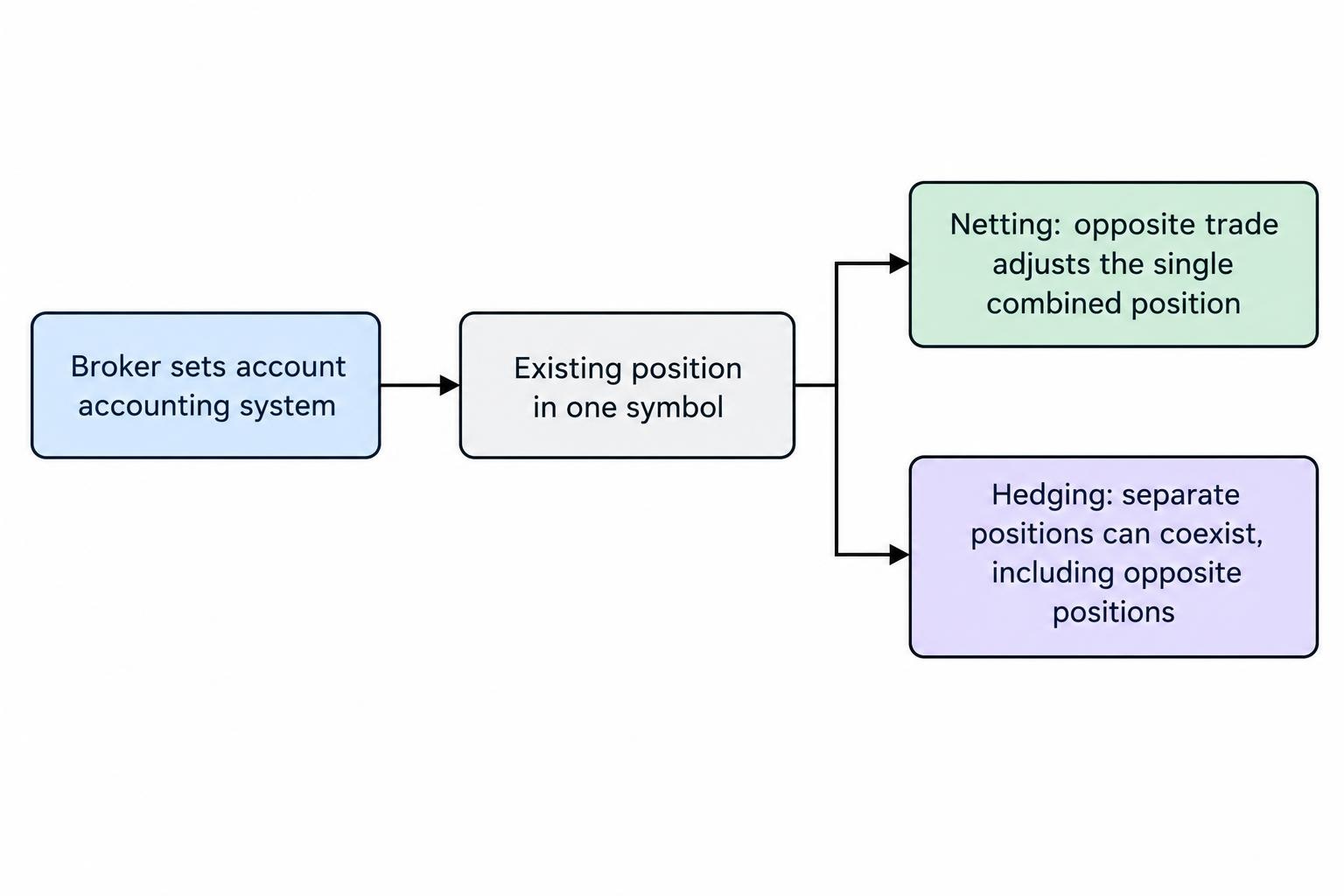
MT5 supports both netting and hedging, but the broker sets the accounting system for the account. Under netting, trades adjust one combined position per symbol. Under hedging, separate positions can coexist, including opposite positions. The distinction affects closing and reversing trades, as set out in the MetaTrader 5 position accounting documentation.
Test this directly. Open a small demo position, submit an opposite order and inspect the result. Did it reduce the existing position or create another one? Traders running several strategies on the same instrument should resolve that question before comparing chart layouts. The wrong account behavior can disrupt an otherwise suitable workflow.
cTrader: Compare Local and Cloud Automation
For automated trading, cTrader’s execution environment matters. Cloud execution supports cBots independently of your device, while local execution on Windows or Mac requires the application to remain running. Cloud support does not extend to every algorithm type; the cTrader cloud and local execution documentation distinguishes cBots from indicators and plugins.
Check the proposed bot rather than assuming cloud availability settles everything. Review external dependencies, instance allowances, error reporting and restart behavior. For manual trading, use the same order entry and position management tests you apply elsewhere. Automation features are irrelevant if you will never use them, however impressive the menu looks.
TradingView: Confirm the Tradable Symbol and Data Feed
With a TradingView connection, finding a chart is not enough. Confirm that the connected account can trade the exact symbol. Also check the data feeding the order panel: a chart subscription does not necessarily provide the broker data needed for execution. The TradingView guidance on chart and broker data addresses these differences.
During the demo, filter for the connected broker’s tradable symbols and compare the chart with the order ticket. Check quantities, available order types and position updates. Treat the connection as something to verify end to end, not as a promise that every chart, alert or strategy can place an equivalent live trade.
Proprietary Platforms: Assess Convenience and Portability
Assess a proprietary platform on its actual controls rather than dismissing it because it lacks a familiar third party name. Can you review contract details, amend orders and export usable records without leaving the interface?
Then consider the exit route. Check whether layouts, trade history and custom work can be exported. If you change providers, how much needs rebuilding? Convenience has value, but record the switching cost before making the platform central to your process.
Compare Total Costs Using the Same Trading Scenario
“Free platform” is not a complete cost comparison. Separate software subscriptions and optional services from spreads, commissions, financing and currency conversion. Use the same instrument, exposure, account currency and holding period for each candidate.
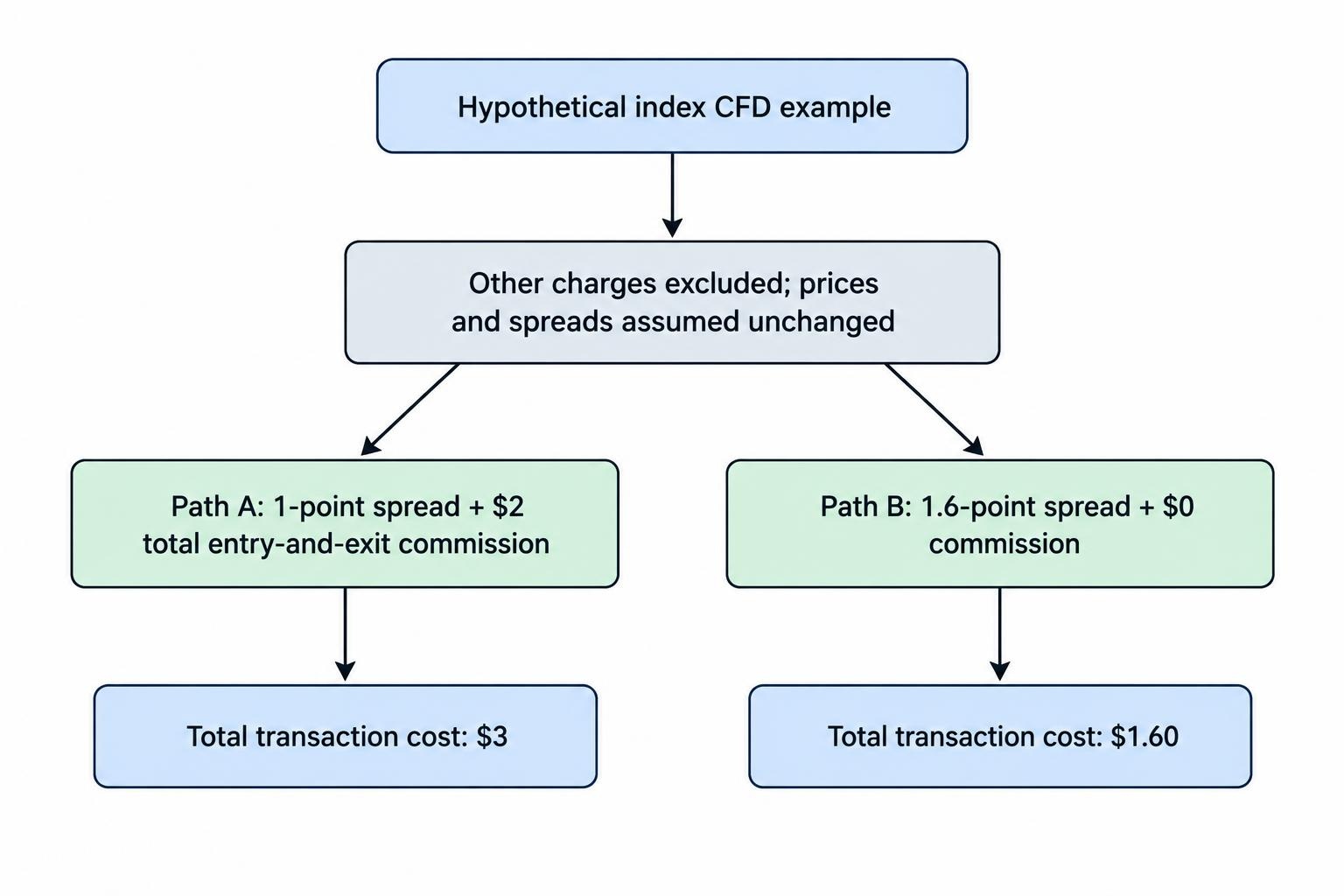
Consider a hypothetical index CFD position worth $1 per point. Account A quotes a one point spread and charges $2 in total entry and exit commissions. Account B quotes a 1.6 point spread with no commission. Assuming unchanged prices and spreads, and excluding other charges, the transaction cost is $3 on A versus $1.60 on B. The tighter spread did not produce the cheaper trade.
For positions held overnight, compare financing separately. Record the rate, charging time, applicable day count and any different treatment of long and short positions. Use CFD overnight financing calculators to assess holding costs without turning a platform comparison into a financing spreadsheet.
Also price the workflow you actually need: chart subscriptions, market data, hosting and paid extensions. Do not buy an annual software plan before confirming account compatibility. A discount on something you cannot use is still an expense.
Test the Order Ticket Before the Indicator Library
The order ticket should make instrument, direction, quantity and order type easy to distinguish. Check whether it displays estimated exposure, required margin and the effect of a proposed stop in the account currency. Where those estimates are absent, decide whether an external calculation fits your process.
Quantity deserves special attention. A value of “1” might represent one contract or another defined trading unit. Read the contract specification before comparing position sizes across accounts. Matching the number typed into two tickets does not establish matching exposure.
Test amendments and exits as carefully as entries. Can you reduce a position without closing it entirely? Can you identify which pending orders remain after an exit? Does a rejected amendment leave the original order in place, and is that status obvious?
Use the broader CFD order management guide for detailed workflow checks. For platform selection, the question is simpler: can you complete routine actions accurately without hunting through menus?
Assess Execution Records, Not Speed Claims
A responsive interface is useful, but a quick animation does not establish execution quality. Check whether the platform distinguishes an instruction being submitted, accepted, filled, partially filled, rejected or canceled. Those states should remain clear after reconnecting.
Look for records that connect an order to its resulting trades. You should be able to recover the requested quantity, executed quantity, fill price and timestamps where provided. Export a sample file and inspect it. A visually tidy account statement may still lack the fields needed to investigate a disputed result.
For a structured assessment beyond interface behavior, use the guide to comparing CFD price feeds and execution quality. Keep the distinction intact: software usability, quote behavior and execution outcomes are related questions, not interchangeable measurements.
Do not deliberately provoke live trading failures to test recovery. Use demo conditions for connection interruptions and review the provider’s documented procedures for unresolved order status. When an instruction’s outcome is uncertain, checking the account is safer than repeatedly pressing the button.
Check Risk Displays, Mobile Access and Security
A useful account view keeps equity, used margin, free margin and open positions close together. Check whether profit and loss includes accrued charges or displays them elsewhere. Labels should make that treatment clear; otherwise, two apparently identical balances may describe different things.
Test a proposed position before placing it. Does the margin estimate change sensibly when quantity changes? Can you distinguish the cash required to open the trade from the exposure created by it? Compare the display with an independent estimate using CFD margin and exposure calculators. Margin is not a maximum loss budget.
On mobile, prioritize emergency tasks over visual similarity with desktop. Find an open position, inspect its protective orders, amend an order and close the position. Check whether alerts arrive when the app is closed, but do not treat a notification as an executed instruction.
Include account access in the comparison. Check available authentication controls, session management, recovery procedures and connected application permissions. Obtain the software through the verified provider or vendor route. Record how to contact support if you lose platform access while positions remain open.
Run the Same Demo Test on Every Shortlisted Platform
A repeatable test produces a more useful comparison than browsing each platform until one feels familiar. Use comparable account settings where possible, and write down differences rather than relying on memory.
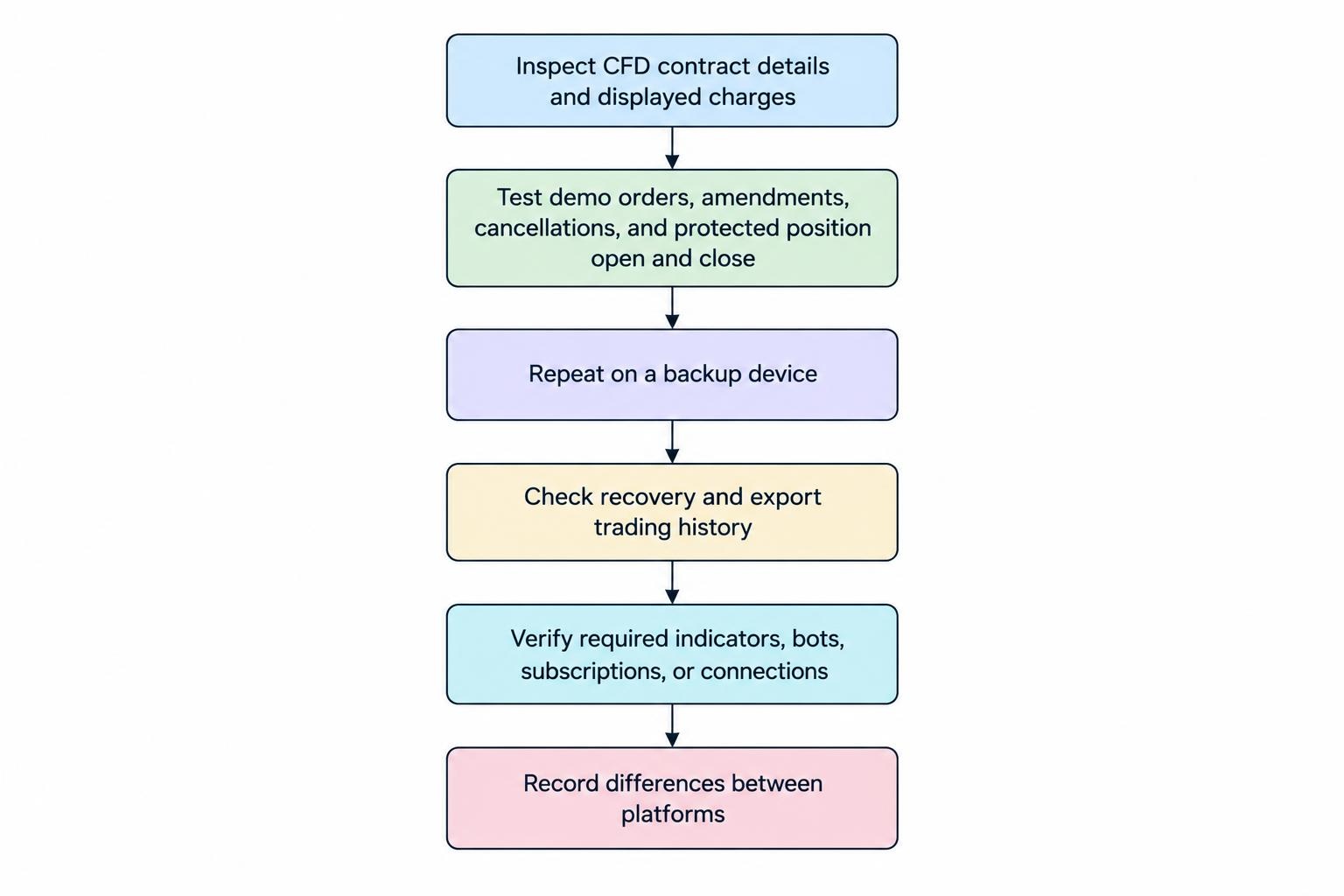
- Inspect one intended CFD. Record its contract size, minimum quantity, trading hours and displayed charges.
- Complete the trade lifecycle. Place a pending order, amend it, cancel it, then open and close a demo position with protective orders.
- Repeat on your backup device. Confirm that positions and order status are clear without relying on a saved desktop layout.
- Check recovery and records. Reconnect after a demo interruption, reconcile account status and export the trading history.
- Verify optional dependencies. Test any required indicator, bot, subscription or connection before counting it as available.
A demo can establish usability and compatibility; it does not prove future live fills, profitability or performance during market stress. Keep those claims out of your scorecard.
Choose the platform that meets your mandatory requirements with the fewest operational compromises. Reject candidates that fail lawful access, contract suitability or basic order control checks. Among those remaining, prioritize clear costs, recoverable records and reliable daily use. Extra features deserve weight only when they solve a task you actually perform.