A trading dashboard should make three things clear: what is happening, what needs attention and what actions are available. Charts and account figures serve those decisions. If the screen requires constant searching, its design needs work, however impressive it looks.
Designing a trading dashboard starts with information hierarchy, not a widget catalogue. Choose the tasks first, then arrange the data, status messages and controls around them. Within a broader trading dashboard and control panel, the layout should keep account context visible and make uncertainty difficult to miss.
Start With Decisions, Not Widgets
Write down the questions the dashboard must answer during a normal session. An intraday trader might need to check working orders, inspect a selected instrument and identify positions approaching a chosen exposure threshold. Someone reviewing longer holding periods may care more about account changes and pending transactions.
Turn those questions into short tasks: “Find my largest open position,” “Check whether this order filled,” or “Confirm that these prices are current.” Each visible component should support a task. A chart that looks useful but answers no recurring question belongs elsewhere.
Separate monitoring from investigation. The main screen should show the current situation and exceptions. Detailed execution records, calculation methods and historical comparisons can sit behind a deliberate selection. Do not make users open another screen to discover that an account connection has failed.
Decide whether the dashboard is read only or allows trading. That choice affects the entire layout. A monitoring screen can prioritise comparison; a trading screen must also make the active account, instrument, quantity and action unmistakable.
Build a Stable Visual Hierarchy
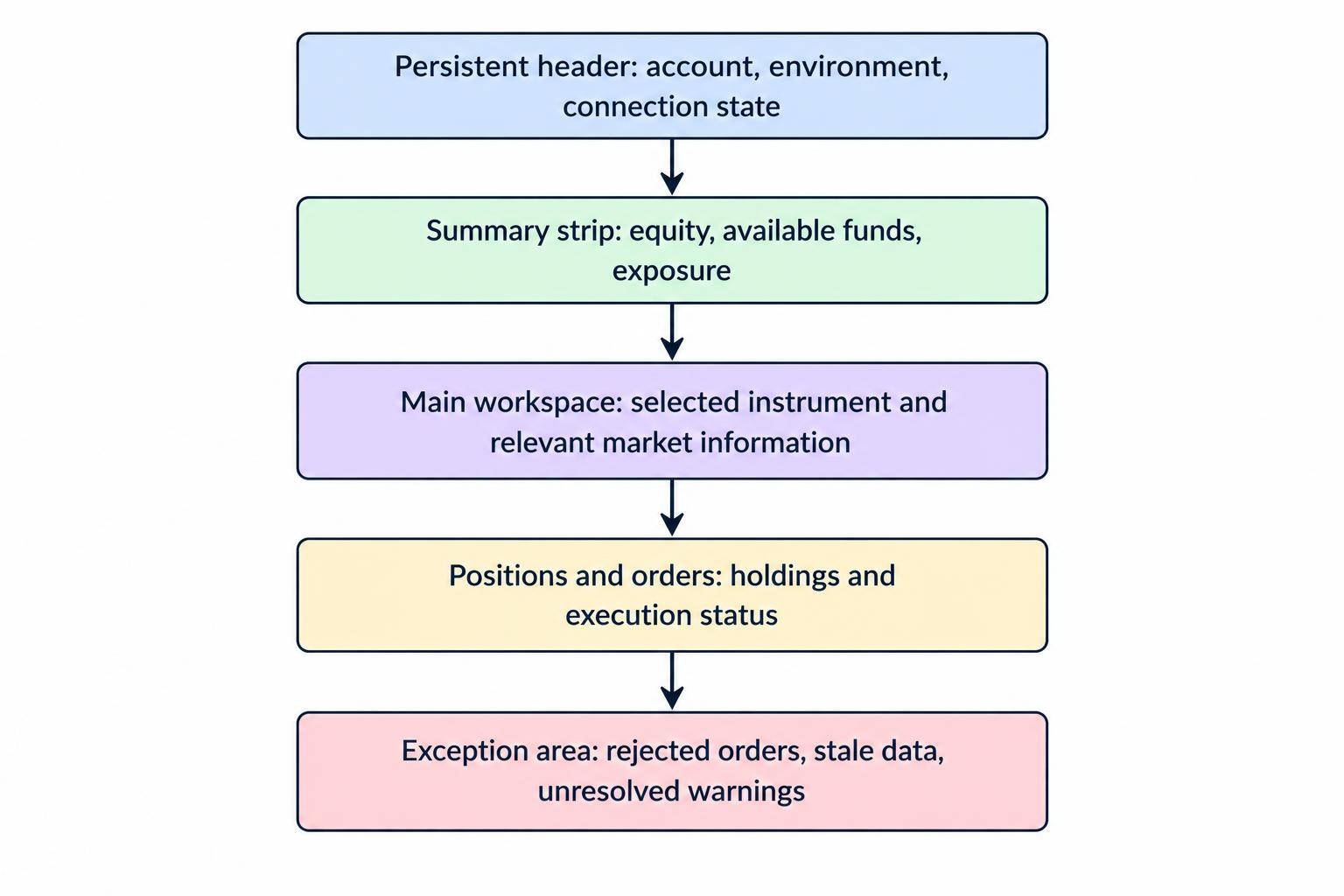
Give the screen a predictable structure. Keep account identity, trading environment and connection status in a persistent header. Place the information needed for the main task beneath it, with secondary detail further down or in an expandable panel.
The following is a starting layout for an execution focused dashboard, not a universal template.
| Screen area | Suggested content | Design purpose |
|---|---|---|
| Persistent header | Account, live or simulated environment, connection state | Keep operating context visible |
| Summary strip | Account equity, available funds, selected exposure measures | Support a quick account check |
| Main workspace | Selected instrument, chart and relevant market information | Support the current task |
| Positions and orders | Open holdings, working orders and recent status changes | Show commitments and execution progress |
| Exception area | Rejected orders, stale data and unresolved warnings | Keep problems visible until addressed |
Reserve space for warnings rather than letting each new message push controls around. Keep position rows stable while values update. If automatic sorting is available, make it optional and clearly labelled. A moving target is a poor place for an order button.
Choose Metrics With Clear Meaning and Scope
Start with a small summary strip rather than filling the header with every available account field. Select figures that help users decide what to inspect next. Give each metric a name, unit, scope and period.
“P&L: 420” leaves too much unanswered. “Session P&L: +420 USD” is better, but the interface should still identify whether that figure includes open positions, closed trades, fees and financing. Keep these definitions accessible without forcing users to remember them.
Distinguish account totals from filtered results. If the positions table shows only one strategy, label its subtotal accordingly. Do not let an account wide figure appear to describe the selected rows. Detailed valuation and calculation choices belong in the design of live position and profit and loss dashboards.
Use an explicit unavailable state when a value cannot be calculated. Zero means zero; it should not also mean loading, disconnected or missing. Where only part of an account has loaded, show that limitation beside the summary rather than presenting a complete looking total.
Make Data Freshness Part of the Interface
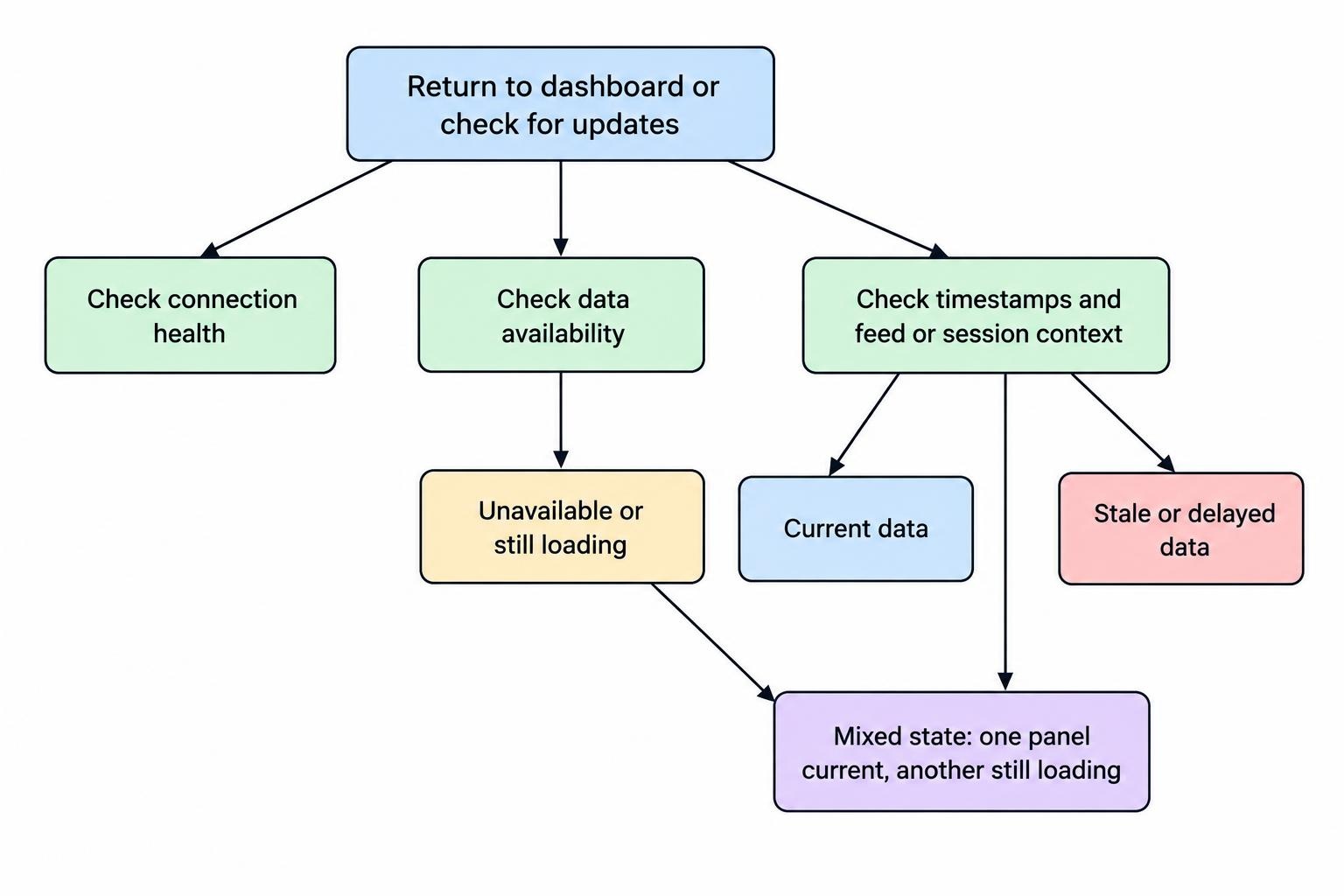
A price needs more context than a number and a green connection icon. Design separate indicators for connection health, data availability and data age. Keep delayed subscriptions, closed sessions and interrupted feeds distinguishable.
Where available, retain the provider’s event timestamp separately from the time your application received the message. Show a clearly labelled last update time or age near information that depends on freshness. A screen redraw should never reset the apparent age of unchanged data.
Set freshness rules around the feed’s expected behaviour and the dashboard’s task. Avoid one timeout for every instrument and panel. A quiet instrument may produce no new trades while the connection remains healthy. Use available heartbeats and session status alongside timestamps rather than treating silence alone as proof of failure.
Browsers can throttle timers and pause animation callbacks in background tabs. The MDN documentation on page visibility and background processing describes these behaviours. Test what users see when returning to a dashboard after switching tabs, minimising the window or waking a laptop.
On return, recheck freshness before presenting the screen as current. If prices are fresh but positions are still loading, show that mixed state. “Connected” should not become shorthand for “everything on this screen has been verified.”
Use Tables and Charts for Different Jobs
Use tables when users need exact quantities, prices, timestamps or order states. Right align comparable numerical columns, following the GOV.UK Design System guidance for numerical tables. Keep decimal precision consistent within each field and show currency or quantity units in the column heading.
For updating numbers, consider tabular numerals so digits occupy equal widths. Keep instrument names readable and avoid clipping the part that distinguishes similar contracts. An expandable row can hold secondary details, but the instrument identity, position size and order state should remain visible.
Use charts for movement, comparison and concentration. Label each chart with its instrument or account scope, time range and units. If two panels show different periods, make the difference obvious. “Today” also needs a defined session boundary and time zone.
Use consistent scales for charts intended for direct comparison. Independent automatic scales can make very different moves look alike, a problem addressed in the Office for National Statistics guidance on chart axes. A price line need not start at zero, but its scale must remain visible.
When comparing instruments with different price levels, consider a clearly labelled percentage change view with a shared starting point. Keep the underlying price available. Mark missing intervals rather than filling them with invented observations, and distinguish historical data from any projections.
Make Colour Helpful, Not Mandatory
Pair colour with text, symbols or line styles. Show “Rejected” beside an error marker, retain plus and minus signs on monetary changes, and label connection states directly. This follows WCAG guidance against using colour as the sole means of conveying information.
Give colours consistent jobs. A red price change and a red connection warning should not compete for attention through identical treatment. Use a stronger combination of placement, icon and wording for operational problems. Keep ordinary updates visually restrained.
Test both light and dark themes rather than assuming either is readable. For ordinary text, the WCAG AA minimum contrast threshold is 4.5:1; qualifying large text has a 3:1 threshold. Check labels and timestamps as carefully as headline figures against the WCAG minimum text contrast requirements.
Support keyboard access with a visible focus indicator and a logical route through controls. Keep essential information available without hover. For assistive technology, prioritise meaningful status changes rather than announcing every price tick. Accessibility should be part of the first layout review, not a final coat of paint.
Separate Monitoring, Trading Actions and Warnings
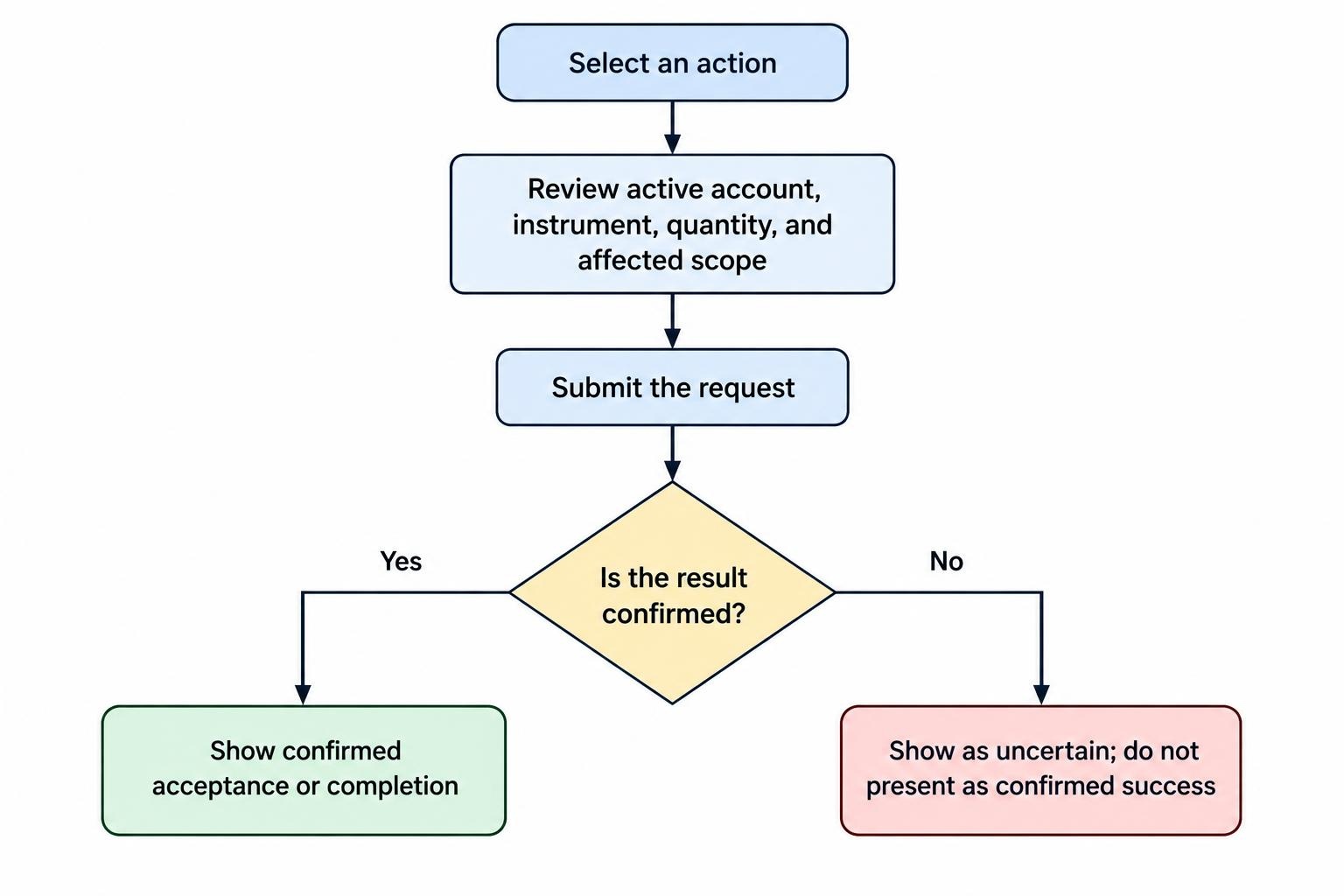
Place trading controls in a distinct area, even when they sit beside a chart. Keep the active account, instrument and proposed quantity visible while users prepare an order. Selecting an instrument for analysis should not silently change an order already being prepared.
Use clear action names such as “Cancel selected order” rather than an unexplained cross. Distinguish a request being sent from its acceptance or completion. If the result is unknown, display that uncertainty instead of encouraging another click.
Keep dashboard warnings separate from enforced restrictions. A visible exposure warning does not itself block an order. Show whether a rule is advisory or enforced, and develop the underlying behaviour separately through trading risk control panels.
Give unresolved operational problems a persistent home. A rejected order should not vanish with a brief notification. Group repeated messages about the same event and distinguish acknowledgement from resolution: reading a connection warning does not restore the connection.
For actions affecting several positions or orders, show the scope before submission. Name the account and affected items. Avoid vague labels such as “Close all” when “all” could mean the filtered table, one account or every connected account.
Adapt the Layout Without Hiding Context
Design the smallest useful screen before spreading components across several monitors. On a narrow display, prioritise account identity, current warnings, selected instrument and active positions or orders. Move secondary analysis into another view rather than shrinking every component until the labels become decoration.
Allow users to save layouts, but keep a dependable default and a way to reset it. Consider protecting essential context from removal. Personalisation should not make it possible to hide the live account label and connection state accidentally.
When the workflow grows beyond one workspace, use deliberate grouping rather than adding charts wherever space remains. Instrument groups, linked selections and screen roles need their own treatment in dashboard layouts for monitoring multiple markets.
Test resized windows, browser zoom and disconnected monitors. A saved layout should recover into usable space instead of leaving a warning or order panel outside the visible screen.
Validate the Design With Realistic Tasks
Start with a wireframe and representative sample data. Include long instrument names, large negative values, empty accounts, partial results and several simultaneous warnings. Perfectly tidy sample data can hide a surprising amount of bad design.
Ask test participants to complete short tasks without coaching. Measure task completion and mistakes, not whether they like the colours. Useful checks include:
- Identify the active account and confirm whether it is live or simulated.
- Find an order’s current status and distinguish a partial fill from a completed fill.
- Spot stale information and identify which panels remain current.
- Locate a position, inspect its details and return without losing the selected context.
- Complete the same monitoring task using only a keyboard.
Then test disruption. Interrupt one feed while leaving another connected, return from a background tab, resize the window and introduce a burst of updates. Check that controls remain responsive and warnings stay attached to the right account or instrument.
Finish by comparing displayed values and states with the application’s underlying records. Record the layout version and test conditions so later changes can be checked against the same tasks. Keep components that help users notice, verify or act; remove those that only occupy space. A dependable trading dashboard earns its place through clarity, not widget count.