A dashboard for monitoring multiple markets should show where attention is needed, preserve context when you inspect an instrument, and keep data problems visible. Filling every available inch with charts is not the objective. A screen full of unreadable candles is still an unreadable screen.
The most useful layout separates broad monitoring from detailed analysis. Keep a stable market overview, a larger working chart, and a compact status area. The principles covered in designing a trading dashboard provide the foundation; the task here is arranging those components across instruments, sessions, and screens.
Start With the Decisions the Dashboard Must Support
Before choosing a grid, write down what you need to notice. A trader following equity index futures, currencies, and commodities might need to identify an unusual move, compare it with related markets, then inspect the instrument in detail. Those are three separate jobs, and they deserve different amounts of screen space.
Build around three levels of attention:
- Overview: a watchlist or compact market matrix showing direction, movement, session status, and data freshness.
- Comparison: a small group of charts used to assess whether a move appears broad or isolated.
- Inspection: a larger chart with readable prices, annotations, and the relevant time frame.
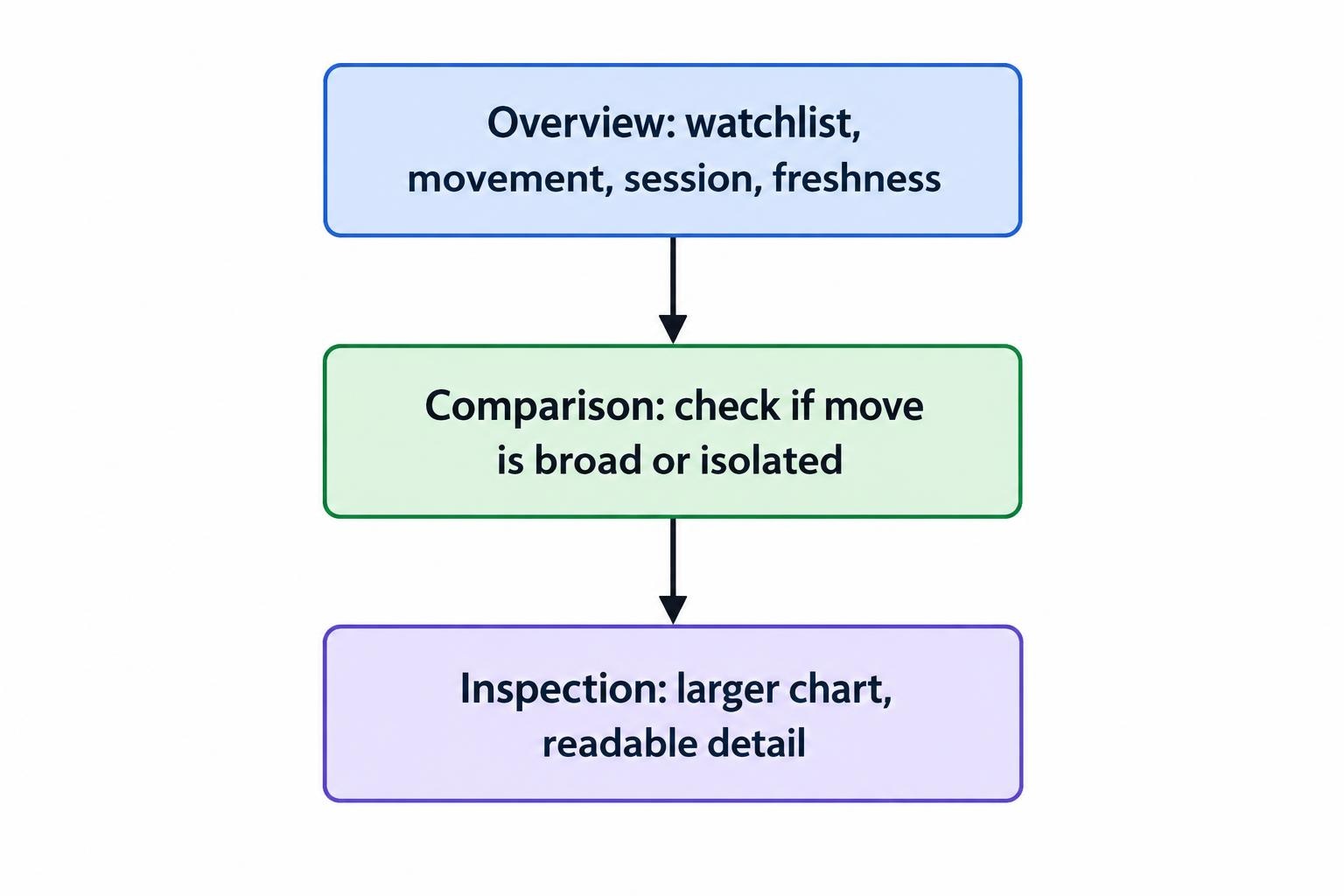
Assign each panel a job before adding indicators. If two panels answer the same question, remove one or give it a different role. Keep instruments that require regular attention visible, and place occasional research candidates in a separate watchlist. Not every symbol needs permanent accommodation.
Choose a Layout That Fits the Available Screens
Use the arrangements below as starting points, not fixed requirements. Available space means usable space after operating system scaling, application toolbars, and readable text sizes—not the resolution printed on the monitor box.
| Setup | Main arrangement | What stays visible | What moves into a secondary view |
|---|---|---|---|
| One screen | Large working chart with a narrow watchlist and status strip | Selected market, comparison list, session and feed status | Additional charts, research, detailed account tables |
| Two screens | Stable overview on one screen; inspection workspace on the other | Market context and the selected instrument | Long news articles and configuration menus |
| Three or more screens | Separate overview, analysis, and operational displays | Market groups, working charts, operational status | Historical research and infrequently used tools |
| Laptop fallback | Watchlist plus one expandable chart | Priority instruments and service warnings | Most comparison charts and optional indicators |
One Screen: Protect the Working Chart
Give the selected instrument most of the space. Put a compact watchlist beside it and reserve a narrow strip for the clock, session label, and connection state. Use a tab or expandable panel for comparisons instead of squeezing six charts into the remaining space.
A useful arrangement is one main chart, one smaller context chart, and a watchlist. Selecting a watchlist row should update the working chart without replacing the context chart. Keep the selected symbol prominent above the chart, particularly if the workspace also contains order controls.
Two Screens: Separate Scanning From Inspection
Keep the overview screen stable. It might contain four comparison charts above a watchlist, while the second screen holds a larger chart and supporting details. Changing the instrument under inspection should not dismantle the overview.
If open positions also need attention, reserve a consistent area for their summary rather than allowing an account table to cover the market grid. The separate guide to live position and profit-and-loss dashboards covers the contents of that view. Here, the layout decision is where it belongs and whether it remains visible.
Three Screens: Give Each Display a Purpose
Assign one display to market context, one to detailed analysis, and one to operational information. Resist spreading identical chart grids across all three.
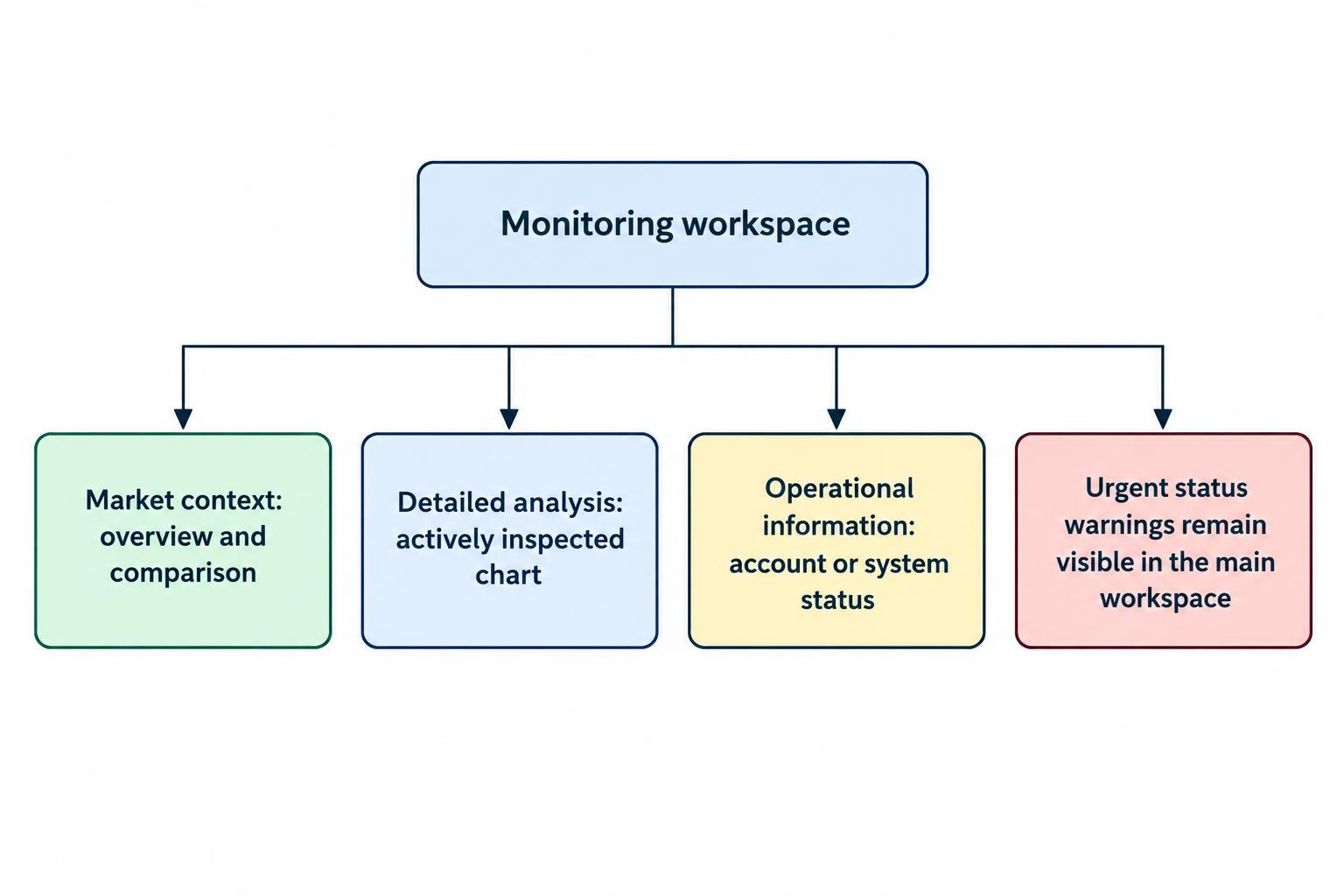
Put the chart you actively inspect directly ahead of you. Use side displays for information you check periodically. Keep urgent status messages within the main workspace too; a warning should not depend on noticing something at the far edge of the desk.
Group Markets by Their Role in the Analysis
Alphabetical ordering is useful for finding symbols, but it is a poor default for comparing them. Arrange market groups around the question being asked: regional equity performance, currency movements, commodity prices, or rates.
For a proposed cross-market workspace, place an equity index future, a currency pair, a gold contract, and a government bond yield in a consistent four-panel grid. Keep their positions fixed between sessions. When a market becomes the focus, expand its inspection chart rather than shuffling the entire grid.
Label the actual instrument, not just its familiar market name. “S&P 500” does not tell the reader whether a panel contains the cash index or a futures contract. Micro E-mini equity index futures have quarterly expiries, documented in the CME Micro E-mini contract details. Show the contract month when displaying a dated future.
Also distinguish a continuous futures series from the contract selected for trading. Use market group headings for organization, but retain the venue, currency, and instrument type within each panel’s header.
Synchronize Charts Selectively
Chart linking should preserve the purpose of each panel. A comparison grid needs different symbols; an inspection workspace may need the same symbol across several time frames. Applying one synchronization rule to both creates unnecessary surprises.
For a cross-market grid, consider linking the time interval and historical viewing range while leaving symbols independent. For an inspection group, link the symbol but leave intervals independent, such as an hourly chart beside a 15-minute chart.
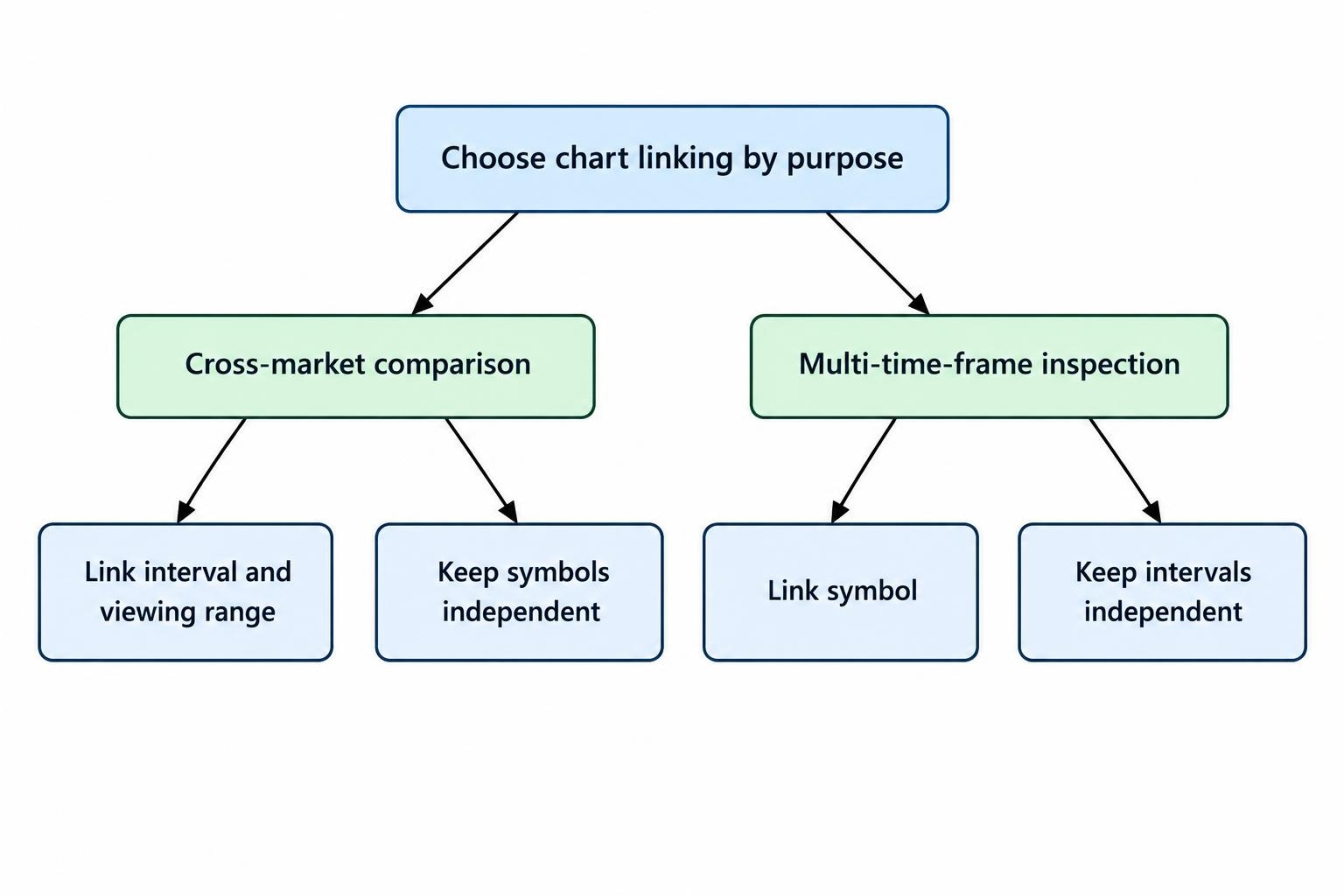
These controls are platform dependent. TradingView supports synchronization of chart settings such as symbols and intervals, while drawing synchronization applies to charts of the same symbol. Its multi-chart synchronization controls illustrate why symbol linking and drawing linking need separate checks.
Label linked groups clearly. After selecting a new instrument, confirm which panels changed and which remained fixed. If order entry is present, verify the instrument shown there independently. A chart update should never be treated as proof that every other panel now refers to the same market.
Make Cross-Market Comparisons Honest
Use comparable measures in the overview. Raw point changes are not a useful ranking method across instruments with different price scales. Percentage changes can support an initial comparison, provided their starting times and reference prices match.
Consider a hypothetical dashboard where one instrument rises from 100 to 101 and another rises from 5,000 to 5,025. The first move is 1%; the second is 0.5%. Ranking by points would put them in the opposite order. Neither measure, by itself, describes the risk of a position.
Give every comparison column an explicit definition: “change since prior close,” “change since session open,” or “change over the past hour.” Do not place these measures beneath a shared “daily change” heading.
For overlaid charts, use a common starting timestamp and label the normalization method. For separate panels, retain readable individual scales. Label yields as yields, prices as prices, and changes in basis points where appropriate. Matching panel dimensions should not imply matching units or economic meaning.
Keep Session Timing and Data Freshness Visible
A multi-market dashboard needs more than a clock. Each panel should identify whether its displayed session is open, closed, extended, or interrupted. Keep the session definition visible when switching between regular and extended trading hours.
The NYSE core equity trading session runs from 9:30 a.m. to 4:00 p.m. Eastern Time, as shown in its official trading hours. Do not apply that schedule to every instrument in the workspace. Give each market its own calendar configuration and verify holidays and shortened sessions before relying on a saved layout.
Choose one reference timezone for the dashboard header. Show exchange-local time where useful, with an explicit timezone label. Use timezone-aware settings rather than manually entering a fixed offset, and make the date visible when monitoring sessions that cross midnight.
Reserve space beside the session label for data status. Useful fields include the provider, whether quotes are real time or delayed, and the last update timestamp. Distinguish the time of the market event from the time your application received it, where both are available.
Do not assume the chart and order panel share a feed. TradingView chart subscriptions and connected order-panel data can differ because the order panel uses broker data; its documentation on chart and order-panel data sources describes this distinction. Label those sources separately rather than placing one reassuring “live” badge above the entire workspace.
A quiet market, a closed session, and a disconnected feed should look different. Define stale-data warnings around the instrument and feed behavior, not one arbitrary timer applied to every panel.
Preserve Readability Across the Grid
Use a consistent header order: instrument, venue, interval, session, then feed status. Keep price scales and timestamps readable at the normal viewing distance. If a panel requires repeated enlargement just to identify its contents, reduce the number of visible panels.
Use color sparingly and pair it with text, symbols, or line styles. A red cell should also show a minus sign; a feed warning should say “delayed” or “disconnected.” This follows the W3C accessibility requirement not to convey meaning through color alone.
Keep indicator choices consistent within a comparison group unless there is a clear analytical reason to differ. Remove labels that overlap prices, repeated legends, and decorative gauges. Where automatic watchlist sorting is available, consider a fixed-order monitoring view alongside a separate movers view. That preserves familiar instrument locations without abandoning ranking tools.
Save Workspaces Around Tasks, Not Every Possible Market
Create a small set of named workspaces, such as cross-market overview, equity session, currency session, and reduced-screen fallback. Preserve the same header conventions and status locations in each.
Within a workspace, separate a stable monitoring list from temporary research candidates. Add a new instrument to the research view first, then give it permanent space only if it answers a recurring question. This keeps the main dashboard from growing through habit.
Leave a predictable location for notifications and a way to identify the affected panel. Notification rules and delivery channels belong in the trading alerts and notification system, rather than becoming another chart overlay. Keep a visible route from an alert to its instrument without allowing pop-ups to cover the working price scale.
Test the Layout Before Depending on It
Use a demo environment or recorded data, where available, to check the workspace under ordinary changes and deliberate faults. The test is not whether the dashboard looks tidy. It is whether you can identify what changed, which instrument is selected, and whether the displayed data remains usable.
Run through a short acceptance check:
- Change the selected symbol and verify every linked and independent panel.
- Switch intervals and sessions, then confirm labels and comparison baselines.
- Disconnect a feed and check that old prices cannot be mistaken for fresh updates.
- Restart the application and inspect the restored symbols, contracts, and window positions.
- Open the fallback layout on the smallest screen you expect to use.
Also check the workspace with menus open and several notifications present. Important labels should remain visible, and restoring the normal view should be straightforward.
Keep the layout that makes these checks easy. Add another panel only when it answers a question the existing workspace cannot answer clearly. More screen space is useful; a reason for using it is better.